1
Sequence Analysis
Using the Sequence Analysis Module
Trimming Report
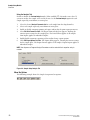
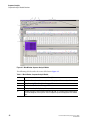
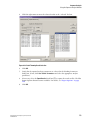
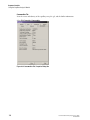
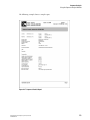
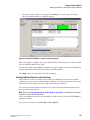
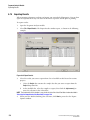
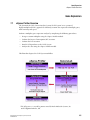
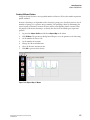
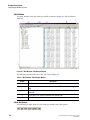
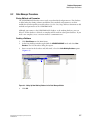
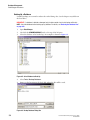
Exporting results creates a Trimming Report, which you can view and print.
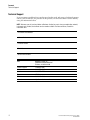
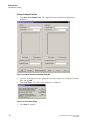
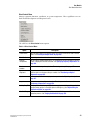
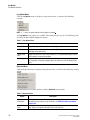
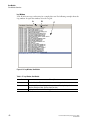
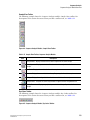
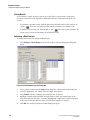
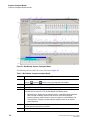
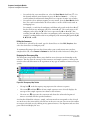
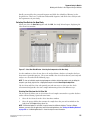
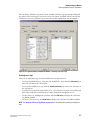
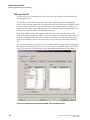
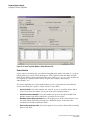
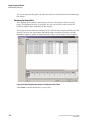
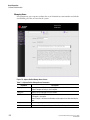
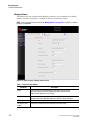
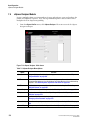
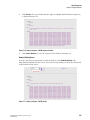
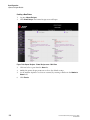
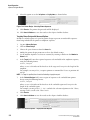
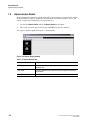
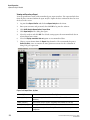
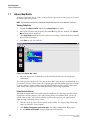
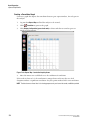
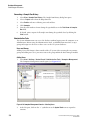
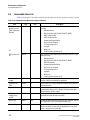
To view the Trimming Report, select View | Trimming Report . The new pane opens at the
bottom of the screen displaying the following details:
r
Result Name
r
Original Sequence Length
r
Length after Quality-based Trimming
r
Vector/Other Subsequence Name
r
First Base Trimmed
r
Last Base Trimmed
r
Enabled
r
Length after Sequence-based Trimming
r
Exported
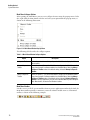
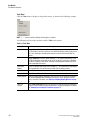
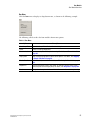
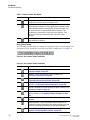
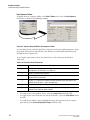
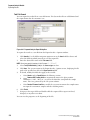
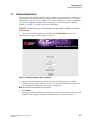
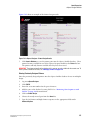
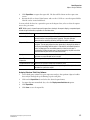
From the Trimming Report pane, you can format the grid, print the grid data, and export the
data as comma separated (.csv) or tab delimited (.txt) text files.
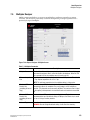
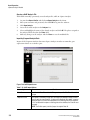
To access these options, right-click over the Trimming Report, then select the desired option
from the pop-up menu.
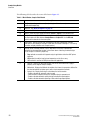
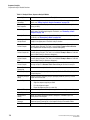
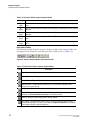
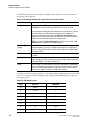
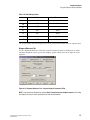
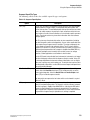
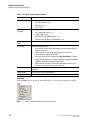
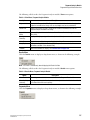
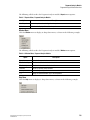
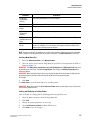
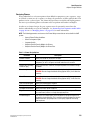
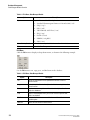
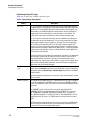
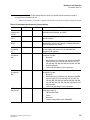
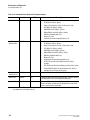
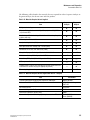
The following table describes these options.
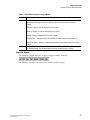
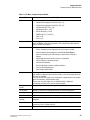
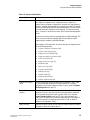
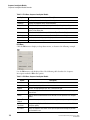
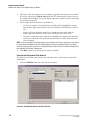
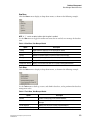
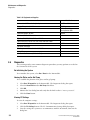
Table 4.25 Trimming Report Right-Click Menu
Option
Print Grid Data
Description
Select this option to print the entire grid as it is represented on the screen.
Export Grid Data Select this option to save the grid data as a comma separated (*.csv) or tab delimited
(*.txt) text file.
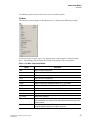
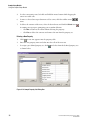
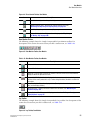
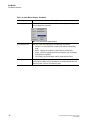
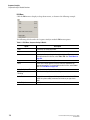
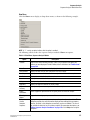
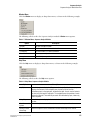
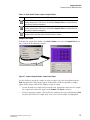
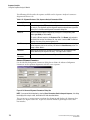
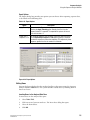
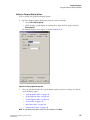
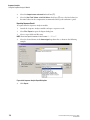
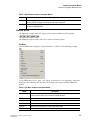
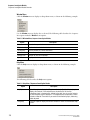
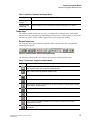
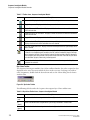
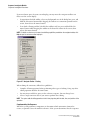
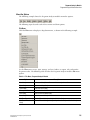
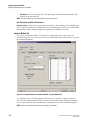
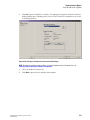
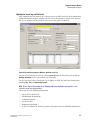
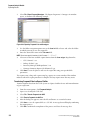
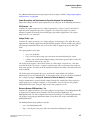
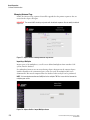
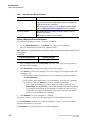
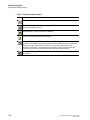
Format Grid
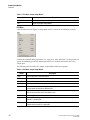
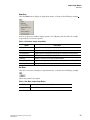
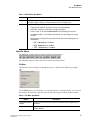
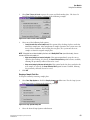
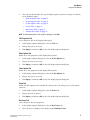
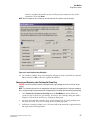
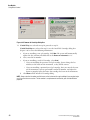
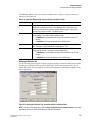
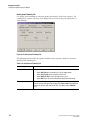
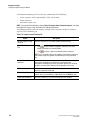
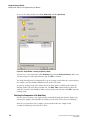
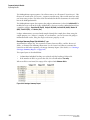
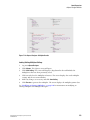
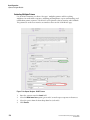
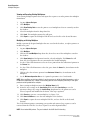
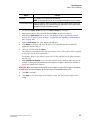
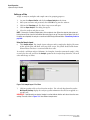
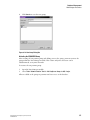
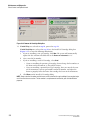
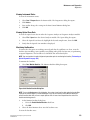
Select this option to open a cascading menu with formatting options, as shown in the
following example.
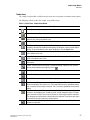
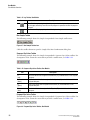
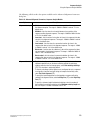
Use this menu to customize the look of the data grid. If you hide rows or columns using
this menu, the Print Grid Data option omits them; however, this does not affect the
Exported Grid Data (this exports all data).
134
GenomeLab Genetic Analysis System User’s Guide
PN A29142-AB