1
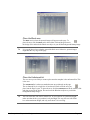
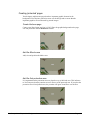
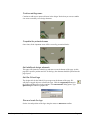
Place the Block area
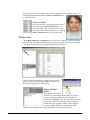
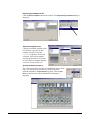
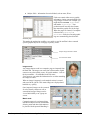
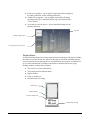
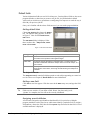
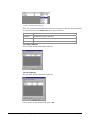
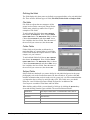
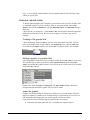
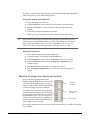
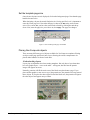
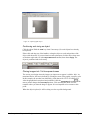
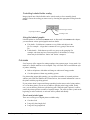
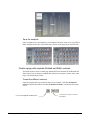
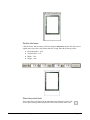
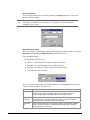
The Block area is where the portrait images will appear on the page. To
place the area, click the Block tool in the toolbar, click and drag an area in
the design. Size and scale the Block area object as you did the background bitmap image.
!
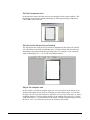
It is a good idea to leave a border around the block area. Otherwise, portrait images
might butt the very edge of the page.
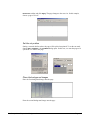
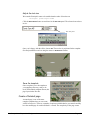
Place the Unfeatured list
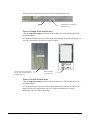
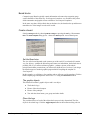
The next area you are likely to want to place onto the template is the unfeatured list. This
is the area
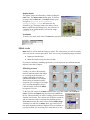
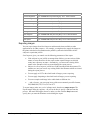
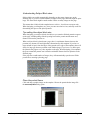
The Unfeatured list is where un-matched names are positioned on the page.
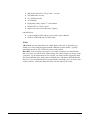
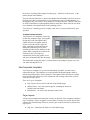
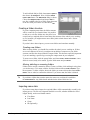
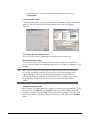
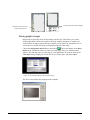
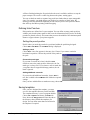
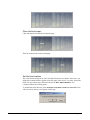
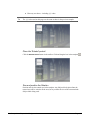
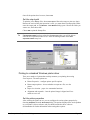
The un-featured list is a single line of text that will scale to fill the area you
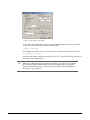
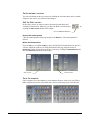
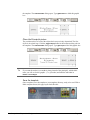
place into the Page Layout. To place the area, click the Unfeatured tool in the toolbar, click
and drag an area in the design. Size and scale the Block area object as you did the
background bitmap image.
!
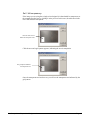
The text in this box will scale to fill the box. If you want text of a particular height,
make sure that the box you position is only that high. This way, the text will fill the
box at that maximum height, and only scale down if it is too long.
NeoComposite – Chapter 11 – Design mode
Page 116