1
Adding images
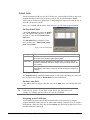
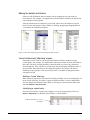
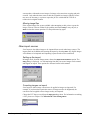
Images can be added to a file, or can over-write existing images within a file. Images are
added by using the Images, Import from Disk dialog. The options available vary according
to whether a file is indexed or sequentially numbered.
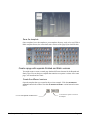
Add new files to the end of an existing file
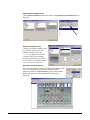
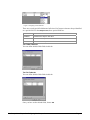
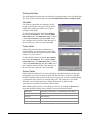
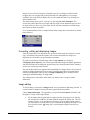
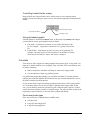
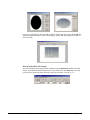
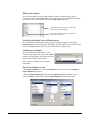
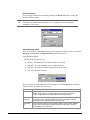
Choose Images, Import options panel… The Images Options Panel opens. Choose To end as
the Incoming images selection. Specify the files to be imported as previously discussed.
Images will be appended to the end of the file.
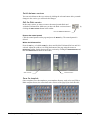
Insert or replace files within a file
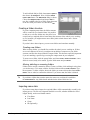
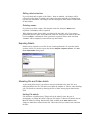
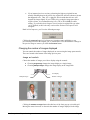
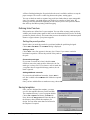
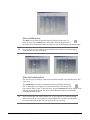
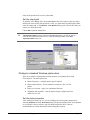
To add images somewhere in the middle of an existing file, first choose the image where
the new images are to be inserted or replaced, then choose Images, Import options panel…
The Images Options Panel is shown. Note that the options Insert and Replace are available.
Images that are imported with Insert selected will be added from the selected image.
Images imported with the Replace option selected will overwrite existing images from the
selected image.
Deleting images
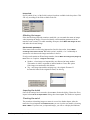
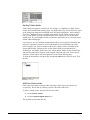
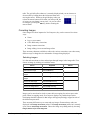
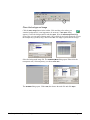
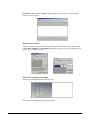
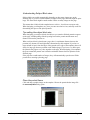
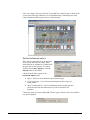
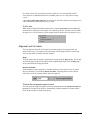
To delete images, select the image or images you wish to delete, then press the Del key, or
choose Edit, Delete. A confirmation of the deletion is requested, then the images are
removed. Choose OK – the selected images are deleted. Any groups that used deleted
images will not be removed. Bear in mind that if you have already matched images to
names (and this may have happened automatically if you have already imported the data),
the action of deleting an image may have created an unmatched name in Match mode, and
it’s probably a good idea to check to see what effect the deletion has had. You’ll probably
find you can resolve the problem by selecting Edit, Remove matched object, but you may
need to ‘Move’ and ‘Slide’.
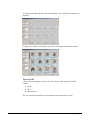
Closing and compacting files
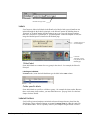
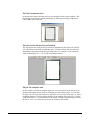
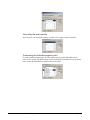
Close a file by choosing File > Close. The current file is saved and closed. There’s no way
to close a job file without saving it.
NeoComposite – Chapter 9 – Images mode
Page 63