1
Menus
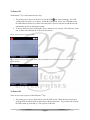
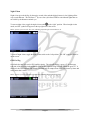
When asked for password, use joystick in up, down, left and right directions to get to the number needed.
Press joystick inward to select each number. Once the whole password is entered, highlight “OK” and
press inward on the joystick.
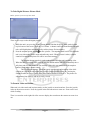
To scroll through the menu, push the joystick in the up or down direction. To change the selection on a
menu option, push the joystick to the left or right. To enter the choice on the menu option, press inward
on the selection to choose.
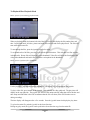
To get into menu for each mode, go to the desired mode, press “menu” and that mode’s menu will appear.
To get out of menu screen, push the “menu” button.
Video Menu
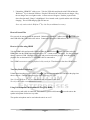
Video Resolution: There are four different resolutions.
a)
b)
c)
d)
1920 x 1080 @ 30FPS; This is full HD 1080p
1280 x 720 @30FPS; This is HD 720p
848 x 480 @ 60 FPS
848 x 480 @ 30FPS
Recording at a lower video resolution will allow the unit to have longer battery life.
White Balance: Used to adjust the color in an image to achieve the most accurate color seen by the
human eye.
a) Auto: White balance is almost always set on auto. With all the resolutions on this unit, the white
balance does not need to be changed.
b) Incandescent: Incandescent light comes from light bulbs that product light from high
temperatures.
c) Sunny: Sunny light comes directly from the sun.
d) Cloudy: Cloudy, Rainy, Overcast outdoor areas will use this setting.
e) Fluorescent: Fluorescent light comes most commonly from fluorescent lamps.
Contrast: How light is casted on an image and the shadows that are casted because of the objects in the
way of the light.
a) Standard: Standard is auto setting. Standard is the ideal choice for the contrast.
b) Hard: Hard contrast creates sharp shadow edges.
c) Soft: Soft contrast creates a gradual transition from light to shadow.
Sharpness: Used to highlight or blend the edges of the subject in the image.
a) Standard: Standard is ideal for everyday use.
14