1
VIDEO
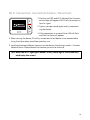
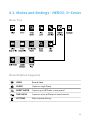
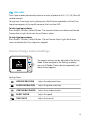
To record video, please press the M button repeatedly until the Video icon appears at
the top left corner of the Live View OSD.
To start recording:
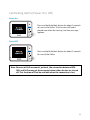
Press the REC (Shutter / Select) button. The red LED Lights will flash while recording.
To stop recording:
Press the REC (Shutter / Select) Button while recording. The red LED light will flash
three times and stops recording.
Tips: The Live View does not support recording in high resolutions. When
you start recording in high resolution, the message “PREVIEW NOT
SUPPORTED” will appear on the screen. When you stop recording, the
live view will be displayed again.
PHOTO
To capture a Photo, please press the M button repeatedly until the Photo icon appears
at the top left corner of the Live View OSD.
To take a photo:
Press and release the REC (Shutter / Select) Button. The red Camera Status Lights
flash when photos are taken.
BURST PHOTO
In Burst Photo mode your camera takes multiple photos in short time intervals.
Please press the M button repeatedly until the video icon appears at the top left corner of the Live View OSD.
To take a burst photo:
Press the REC (Shutter / Select) Button. The red Camera Status Lights flash and the
camera captures photos multiple times.
Available interval options:
3 photos / 1 second, 5 photos / 1 second, 10 photos / 2seconds, 30 photos / 1 second,
30 photos / 2 seconds or 30 photos / 3 seconds.
Tips: Sometimes 30 photos / 1 second can be too fast. Try a slower BURST
PHOTO setting to get better results.
13