1
Using the CTERA Agent in Appliance Mode
3
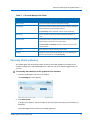
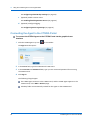
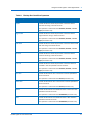
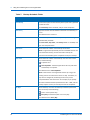
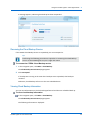
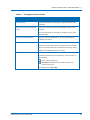
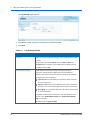
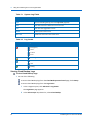
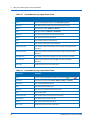
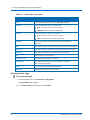
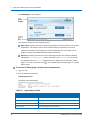
Table 3: File-Level Backup Tab Fields
In this field...
Do this...
Manual Only
Choose this option to disable automatic backups.
Periodically
Choose this option to specify that automatic backups should be
performed every certain number of hours.
The Start Every field is enabled, and you must complete it.
Start Every
Use the arrows to specify the interval between backups, in
hours.
Specific Time
Choose this option to specify that automatic backups should be
performed at a certain hour on certain days.
The Start Time and On Days fields are enabled, and you must
complete them.
Start Time
Select the hour at which backups should start.
On Days
Specify on which days backups should occur, by selecting the
relevant check boxes or clicking Every Day.
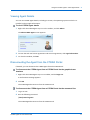
Manually Starting Backup
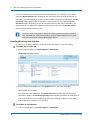
The CTERA Agent will automatically back up files to the CTERA appliance according to the
schedule configured on the CTERA appliance. If desired, you can manually trigger backup at
any time.
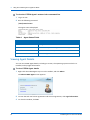
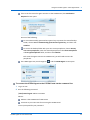
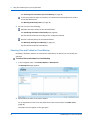
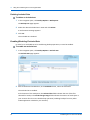
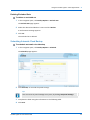
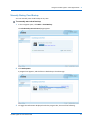
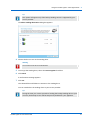
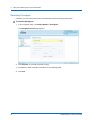
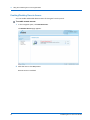
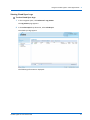
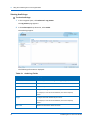
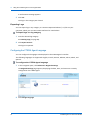
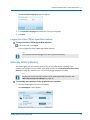
To manually start backup via the graphical user interface
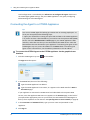
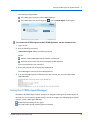
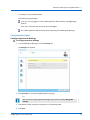
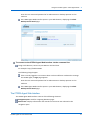
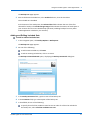
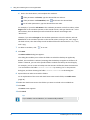
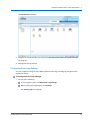
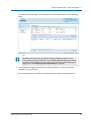
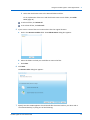
1 Click the CTERA Agent tray icon in the taskbar.
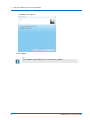
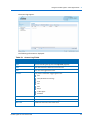
The CTERA Agent screen appears.
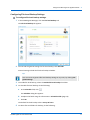
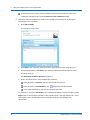
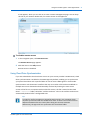
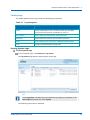
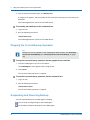
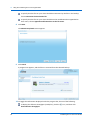
2 Click Backup now.
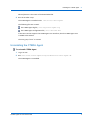
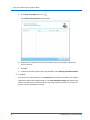
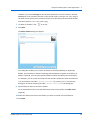
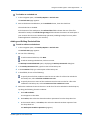
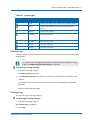
A progress bar appears, and the number of files and bytes remaining for local back up are
displayed.
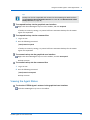
The CTERA Agent backs up files to the CTERA appliance.
CTERA Agent for Linux User Guide
19