1
Microsoft Windows Preinstallation Environment User's Guide
Page 2 of 27
For more information on using Windows PE, see these topics:
l
Using Windows PE in Your Manufacturing Process
Booting Windows PE from Remote Installation Services (RIS) Servers
Order of Operations in Windows PE
Creating a Customized Version of Windows PE
Placing a Bootable Version of Windows PE on a Hard Disk
Reducing the Size of Windows PE
l
Limitations of Windows PE
l
l
l
l
l
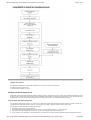
Using Windows PE in Your Manufacturing Process
A basic method for using the Windows Preinstallation Environment (Windows PE) is:
1.
2.
3.
4.
Start the newly-assembled computer with Windows PE.
Run any relevant hardware diagnostic applications.
Configure the hard disk.
Deploy the operating system to the computer using one of these methods:
l
Copying an image from the network.
–OR–
Running Winnt32 from the command prompt in Windows PE and installing the operating system.
Restart into the installed operating system by using Sysprep in Factory mode, or seal the operating system by using Sysprep and
shut down the computer.
l
5.
For more information, see Windows Preinstallation Environment (Windows PE) Features.
Starting the computer by using Windows PE
The Windows OPK CD is a bootable copy of Windows PE (32-bit edition). This default version of Windows PE on the Windows OPK CD
starts and runs the command factory -winpe.
Note
l The Windows OPK CD is only available to OEMs. Corporate users must build a custom Windows PE CD.
The default version of Startnet.cmd is located in the \Winpe folder on the Windows OPK CD. If you build a custom version of
Windows PE, you can modify Startnet.cmd to contain commands specific to your manufacturing environment.
To start a computer by using Windows PE on a CD
1.
2.
3.
Insert the Windows PE CD into the computer.
Configure the computer's basic input/output system (BIOS) to start from the CD before starting from the local hard disk.
Start the computer, pressing any key to start from the CD if the computer contains a formatted local hard disk.
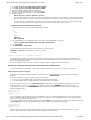
When the Factory tool starts, it first locates a Winbom.ini file by searching these locations in this order:
1.
2.
3.
4.
5.
The
The
The
The
The
path and file name specified by the registry key HKEY_LOCAL_MACHINE\SOFTWARE\Microsoft\Factory\Winbom.
root of all removable media drives that are not CD-ROM drives, such as a floppy disk drive.
root of all CD-ROM drives.
location of Factory.exe, usually the %SYSTEMDRIVE%\Sysprep folder.
root of %SYSTEMDRIVE%.
After locating a Winbom.ini file, the Factory tool reads the value of the WinbomType entry in the [Factory] section.
If the value of WinbomType is not appropriate in this context, the Winbom.ini file is ignored and the Factory tool continues searching
for a Winbom.ini file. If the value of WinbomType is appropriate in this context, the Factory tool reads the value of the NewWinbom
entry in the [Factory] section. If a value is specified for NewWinbom, and a Winbom.ini file is located at that location, the Factory tool
examines that Winbom.ini file for a NewWinbom entry.
This cycle continues for a maximum of 10 times or until the Factory tool locates a Winbom.ini file that does not contain a NewWinbom
entry, whichever occurs first. The Factory tool then continues to run, using the settings in the last identified Winbom.ini file.
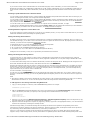
After locating the intended Winbom.ini file, the computer connects to the network as specified in the [WinPE.Net] section. Plug and Play
installs only the network adapter, and then the Factory tool installs networking services and binds the network protocols.
Note
l Instead of using the Windows OPK CD, you can also create a custom version of Windows PE for your factory preinstallation
requirements, as described in Creating a Customized Version of Windows PE.
Running Hardware Diagnostic Applications
Because the Windows XP kernel can dynamically load and unload device drivers when Windows PE is running, the Windows NT driver for
a particular device can be loaded. After the driver loads and initializes, it scans the hardware to find its device. With the driver loaded
successfully, you can usually assume that the corresponding hardware is working correctly.
Your test suite can use the drivers provided by the hardware manufacturer; you do not need to use a different version of the drivers in
your manufacturing environment.
Configuring the Hard Disk and Other Preparatory Tasks
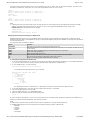
You can format and partition the hard disk in these ways:
file://C:\Documents%20and%20Settings\alessandrot\Local%20Settings\Temp\~hh9F54.htm
15/07/2004