1
Microsoft Windows Preinstallation Environment User's Guide
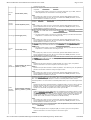
list disk
list disk
list partition list partition
list volume list volume
online
rem
online [noerr]
rem
Page 23 of 27
Displays a list of disks and information about them, such as their size, amount of available free
space, whether the disk is a basic or dynamic disk, and whether the disk uses the master boot
record (MBR) or GUID partition table (GPT) partition style. The disk marked with an asterisk
(*) has focus.
Displays the partitions listed in the partition table of the current disk. On dynamic disks, these
partitions may not correspond to the dynamic volumes on the disk. This discrepancy occurs
because dynamic disks contain entries in the partition table for the system volume or boot
volume (if present on the disk). Dynamic disks also contain a partition that occupies the
remainder of the disk in order to reserve the space for use by dynamic volumes.
Displays a list of basic and dynamic volumes on all disks.
Brings an offline disk or volume with focus online.
noerr
For scripting only. When an error occurs, specifies that DiskPart continues to process
commands as if the error did not occur. Without the noerr parameter, an error causes
DiskPart to exit with an error code.
Provides a way to add comments to a script. For example:
rem These commands set up 3 drives.
create partition primary size=2048
assign d:
create partition extend
create partition logical size=2048
assign e:
create partition logical
assign f:
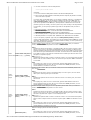
Removes a drive letter or mount point from the volume with focus. If the all parameter is
used, all current drive letters and mount points are removed. If you do not specify a drive
letter or mount point, then DiskPart removes the first drive letter or mount point that it
encounters.
You can use the remove command to change the drive letter associated with a removable
drive. You cannot remove the drive letters on system, boot, or paging volumes. In addition,
you cannot remove the drive letter for an OEM partition, any GPT partition with an
unrecognized GUID, or any of the special, non-data, GPT partitions such as the EFI system
partition.
remove
remove
[{letter=d|mount=path
[all]}] [noerr]
letter=d
Specifies the drive letter to remove.
mount=path
Specifies the mount point path to remove.
all
Removes all current drive letters and mount points.
noerr
For scripting only. When an error occurs, specifies that DiskPart continues to process
commands as if the error did not occur. Without the noerr parameter, an error causes
DiskPart to exit with an error code.
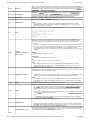
Repairs the RAID-5 volume with focus by replacing the failed RAID-5 member with the
specified dynamic disk. The specified dynamic disk must have free space greater than or equal
to the total size of the failed RAID-5 member.
n
repair disk
rescan
retain
repair disk=n [noerr]
rescan
Specifies the dynamic disk that replaces the failed RAID-5 member. The specified disk must
have free space equal to or larger than the total size of the failed RAID-5 member.
noerr
For scripting only. When an error occurs, DiskPart continues to process commands as if the
error did not occur. Without the noerr parameter, an error causes DiskPart to exit with an
error code.
Locates new disks that may have been added to the computer.
Prepares an existing dynamic simple volume to use as a boot or system volume.
On an x86-based computer, creates a partition entry in the master boot record (MBR) on
the dynamic simple volume with focus. To create an MBR partition, the dynamic simple
volume must start at a cylinder aligned offset and be an integral number of cylinders in
size.
retain
On an Itanium-based computer, creates a partition entry in the GUID partition table (GPT)
on the dynamic simple volume with focus.
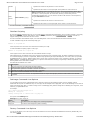
Note
l The retain command is intended for use only during unattended Setup or by original
equipment manufacturers (OEMs).
Selects the specified disk and shifts the focus to it.
select disk
select
select disk=[n]
n
select partition=[{n|d}]
Selects the specified partition and gives it focus. If If you do not specify a partition, the select
command lists the current partition with focus. You can view the numbers of all partitions on
the current disk by using the list partition command.
Specifies the disk number of the disk to receive focus. If you do not specify a disk number,
the select command lists the disk that currently has the focus. You can view the numbers
for all disks on the computer by using the list disk command.
n
file://C:\Documents%20and%20Settings\alessandrot\Local%20Settings\Temp\~hh9F54.htm
15/07/2004