1
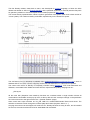
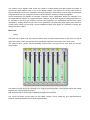
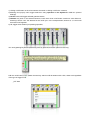
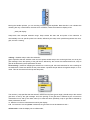
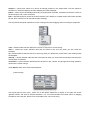
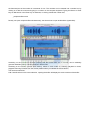
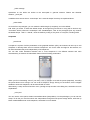
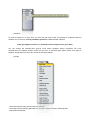
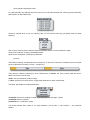
The Audio part of the Audio MIDI Setup application shows Input settings on the left side, and Output settings
on the right.
The System Settings let you choose which audio device is used for system audio input and output, while the
Selected Audio Device menu allows you to control the various settings for the built-in and any external
hardware audio devices.
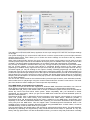
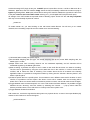
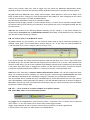
When using external audio devices, the Input Volume and Output Volume sliders can be used to set the
overall input and output volumes of the selected device (they are not available when using the built-in audio
controller). The Device Mute checkboxes allow you to mute the input and output devices, if applicable.
Play Through is available on PowerPC Macs only. Play Through checkbox just under the Input Volume slider
lets you choose whether or not the input device is 'monitored' directly through to the output. When
playthrough is enabled, the dry signal from the input source will play through to the output mixed in with any
processed signal you may be sending to the output in Density. Disabling playthrough will enable you to
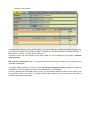
control how much (if any) dry signal from the audio input is routed to the output. The Input Section allows you
to select the Input Source (for example Line or Mic input for the selected device) as well as the sampling rate
and bit depth in the Current Format pop-up menu. Similarly, the Output Section also allows you to select the
sampling rate and bit-depth in its Current Format pop-up menu. The available selections will vary, depending
on your audio hardware.
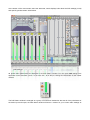
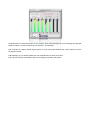
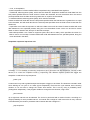
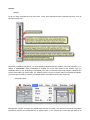
You can set the volume levels for the individual audio input and output channels, mute individual channels,
and/or select them for playthrough using the controls located below the Current Format menus. The lower
part of the window is used to display the current input and output settings.
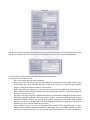
Using MME Audio and DirectSound on Windows
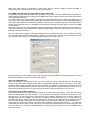
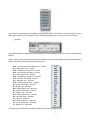
Three types of sound card drivers are supported in Windows: MME, DirectSound and ASIO. Your choice of
driver will have a significant impact on the performance and latency you will experience with Density.
The MME driver (ad_mme) is the default used for output of Windows system sounds, and are provided for
almost any sound card and built-in audio system. While compatibility with your hardware is almost
guaranteed, the poor latency values you get from an MME driver make this the least desirable option for
real-time media operation.
DirectSound drivers, built on Microsoft's DirectX technology, have become commonplace for most sound
cards, and provide much better latency and performance than MME drivers. Whenever possible, a
DirectSound driver (ad_directsound) should be used in preference to an MME driver. Occasionally, (and
especially in the case of motherboard-based audio systems) you will find the DirectSound driver performs
more poorly than the MME driver. This can happen when a hardware-specific DirectSound driver is not
available, and the system is emulating DirectSound while using the MME driver. In these cases, it is best to
use MME directly, or find an ASIO driver for your system.
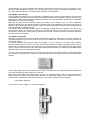
The best performance and lowest latency will typically be achieved using ASIO drivers. The ASIO standard,
developed by Steinberg and supported by many media-oriented sound cards, is optimized for very low
latency and high performance. As with the DirectSound driver, you need to verify that performance is actually