1
128
Nobeltec® Navigation Software User’s Guide
also share NMEA data and serve as a monitoring software station or planning
station.
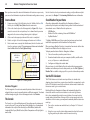
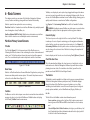
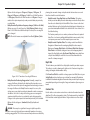
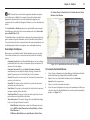
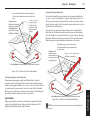
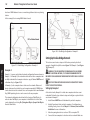
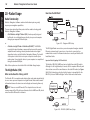
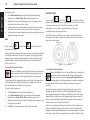
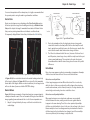
In this example, the incoming NMEA data is shared.
PC 1
PC 2
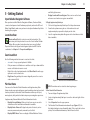
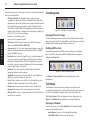
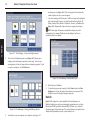
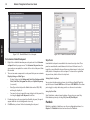
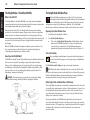
Figure 18.2 - GlassBridge Configuration - Example 2
Setting Up the GlassBridge Network
18 - Networking
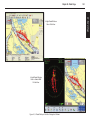
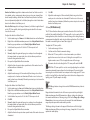
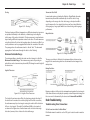
Figure 18.1 - GlassBridge Configuration - Example 1
Example 2
Example 2 is a more sophisticated network configuration than was shown in
Example 1. In Example 2, the network includes at least three computers that
are fully redundant. Each computer includes a copy of Admiral MAX Pro and
a Hardware Key (see Figure 18.2).
In Example 2, each computer shares charts over the network. Raster and
photo charts must be installed on each computer manually. All NMEA data
can be shared across the network. Since each computer has its own Hardware
Key, NMEA-producing devices can be connected to any computer.
This network configuration also allows for the sharing of Nav Objects. In
order to share Nav Objects, one computer is identified as the Server. Data
can be obtained by selecting File | Navigation Objects | Import Nav Objects
from the Main Menu.
This section covers how to setup each of the two previously described
examples. It might be helpful to review Figure 18.1 (Example 1) and Figure
18.2 (Example 2).
WARNING: If you are connecting your Admiral MAX Pro GlassBridge
Network to an external network, it is strongly recommended that you
implement your GlassBridge Network behind the protection of a router or
firewall.
NOTE: The external network should always be connected to the WAN
port of your router or firewall.
Setting Up Example 1
As described earlier, Example 1 includes two computers which are semiredundant. Follow the steps below to setup and configure a system like the
one shown in Example 1.
1. Install Admiral MAX Pro and a Hardware Key on both computers.
2. Install all purchased charts on both computers. For information on
installing charts, please refer to Chapter 2 - Software, Chart and Data
Installation for more information.
3. Attach any navigation devices such as a GPS to computer PC1.
4. Connect the two computers to a hub or wireless network. Make sure