1
Chapter 6 - Basic Screens
•
•
•
•
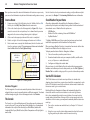
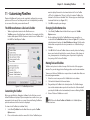
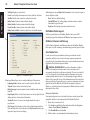
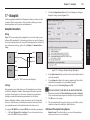
NOTE: The MOB button appears on every menu within NavView.
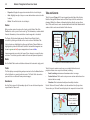
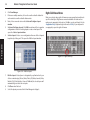
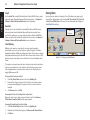
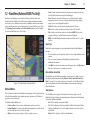
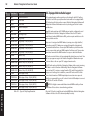
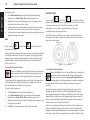
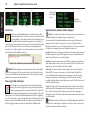
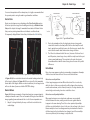
InfoBar Buttons
•
Info: Reveals or hides the InfoBar at the bottom of the NavView window
•
Tool: Shows ToolBar buttons (similar to the available ToolBar buttons in
PlanView)
•
Menu: Reveals or hides the right-hand menu
•
Right-click: Next action on screen is a right mouse click, rather than left
mouse click. Used to reveal Right Mouse Menus.
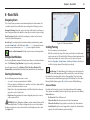
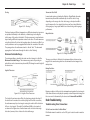
NavView ToolBar
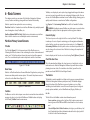
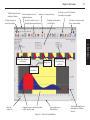
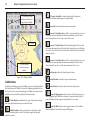
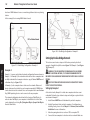
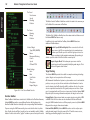
The ToolBar contains all the standard ToolBar buttons available in PlanView.
•
Click Tool to see available ToolBar options.
•
Click Next to display additional ToolBar buttons.
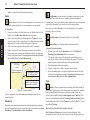
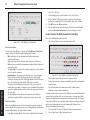
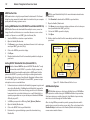
NavView InfoBar
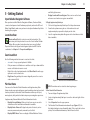
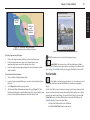
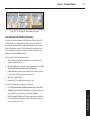
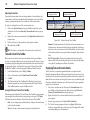
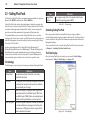
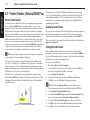
The InfoBar is located along the bottom of the NavView screen. You can hide
the InfoBar by clicking the Info button in the NavView ToolBar.
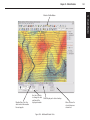
The InfoBar provides information about your vessel's current location
including Vessel Position, Screen Cursor position, Mark data, System Time,
status of peripheral devices, Tides & Currents, Targets, Status Messages and, if
you have the sensors connected, GPS, Water Temperature and Depth.
Click Next or Back to scroll through the available InfoBars.
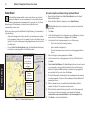
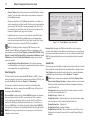
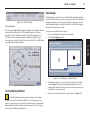
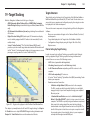
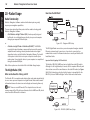
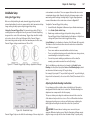
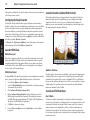
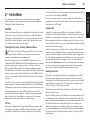
Figure 6.18 - InfoBar and ToolBar
To Use NavView
1.
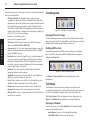
Use the NavView menu buttons to navigate through menu options.
2.
Some menu buttons will lead to secondary menu buttons.
3.
Click Back from any sub-menu to return to the main menu.
To Return to PlanView
•
Click Back from any sub-menu, then click Exit | To PlanView.
•
Press <F9>.
View Manager
View Manager features are covered in greater detail in Chapter 12 - NavView.
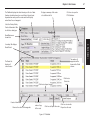
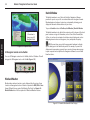
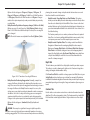
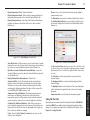
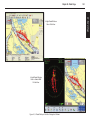
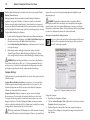
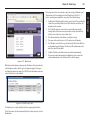
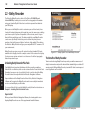
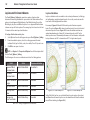
View Manager controls the how NavView content is displayed. Each monitor
connected to Admiral MAX Pro can display a single type of content or be
divided into window panes. View Manager can help you create new screen
layouts containing multiple window panes. For example, if you have a single
monitor and wish to see the 3D Navigator, Radar and a Chart on a single
screen, View Manager helps you to set your view to this configuration.
Save multiple layouts for each monitor and quickly progress through them by
clicking <F6> or reverse-toggle by clicking <Shift+F6>.
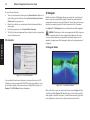
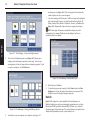
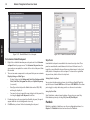
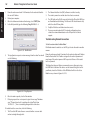
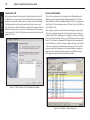
Follow the instructions below to create or edit NavView screen layouts.
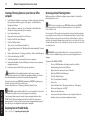
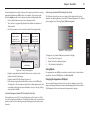
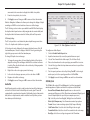
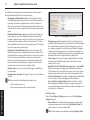
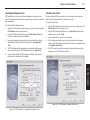
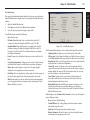
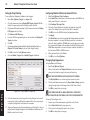
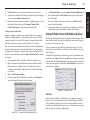
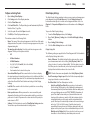
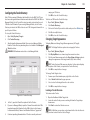
To Configure Views and Layouts in NavView
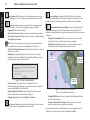
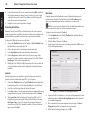
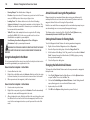
1. Click View from the main menu.
6 - Basic Screens
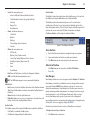
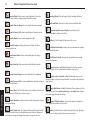
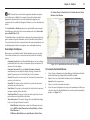
•
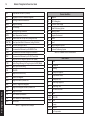
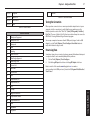
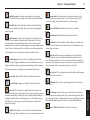
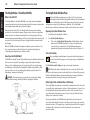
Vessel: Sub-menu options are:
•
Auto-Scroll (Boat, Predictor, Max Ahead, None)
•
Chart Orientation (Course Up, Leg Up, North Up)
•
Tracking
•
Range Circle
•
Boat Properties
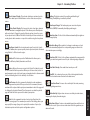
Charts: Sub-menu options are:
•
Chart Table
•
Outlines
•
Quilting
•
Tides (displays the tide stations)
•
Currents
Other: Sub-menu options are:
•
GPS Transfer
•
Options (Tools | Options menu)
•
Colors (Day, Twilight, Night and Color Scheme)
•
Nav Objects (Import, Export, Save All)
•
Undo
•
Redo
•
Route Wizard
Exit: Return to PlanView or close Nobeltec Navigation Software
MOB: Sets Man Overboard mark at the vessel.
35