1
Strata CIX
Using Companion Applications
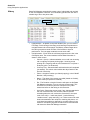
Response Buttons
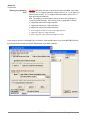
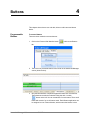
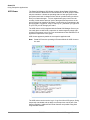
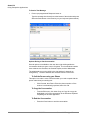
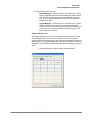
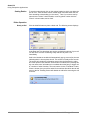
All buttons can be changed on-line from the Silent Message Conversation
window. The first 8 buttons can have their responses defined in Chat Settings;
all others can only be defined using the following procedure.
To Add/Change Text in Response Buttons
•
114
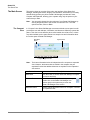
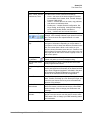
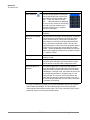
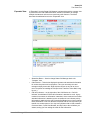
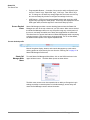
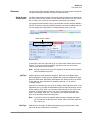
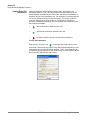
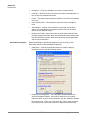
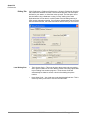
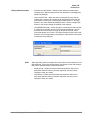
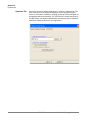
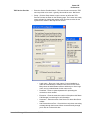
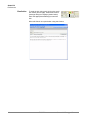
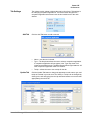
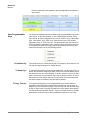
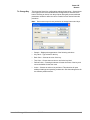
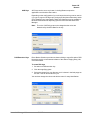
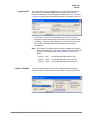
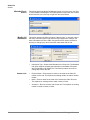
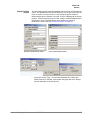
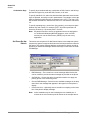
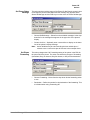
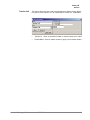
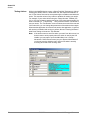
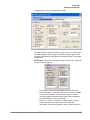
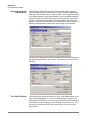
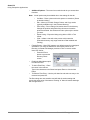
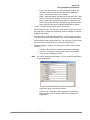
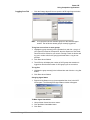
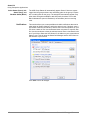
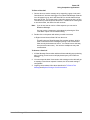
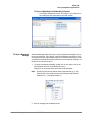
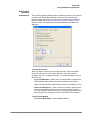
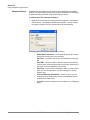
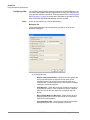
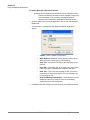
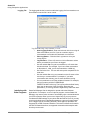
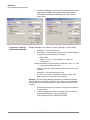
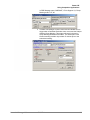
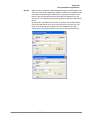
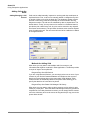
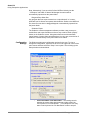
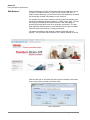
Right click on the button and a drop down menu appears. Select Edit to
edit the button. The dialog box shown below appears. You can change
the caption, the type, the text, and whether to send immediately.
•
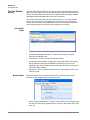
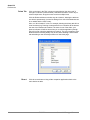
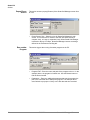
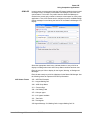
Caption – Type in a caption for the button.
•
When Button is Pressed – Select what the button will do when
pressed by choosing one of the following:
•
Send Text – will send a text string to the other party on the chat
call.
•
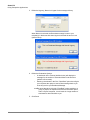
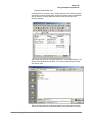
Push URL – will send a URL to the other party on the chat call
and pop open a web browser window to that URL. However, the
pop open url can be disabled by the receiver.
•
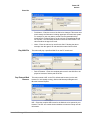
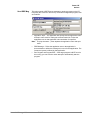
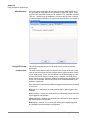
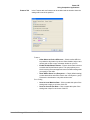
Send Text – Type in the text message or URL you want to send
when you click on this button. Your text message can be any
length in size.
•
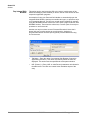
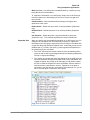
Send Text Message Immediately – Check the box if you are
sending text and you would like to send it immediately, without
clicking on the Send button.
•
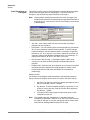
Click OK to save the changes you have made to your Response
Button.
TOSHIBA
Strata Call Manager UG