1
Strata CIX
Using Companion Applications
Adding Calls to the
Dialer
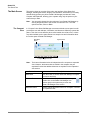
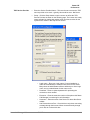
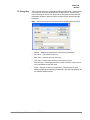
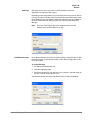
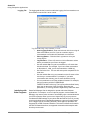
Adding/Changing a Call
Record
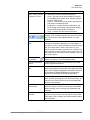
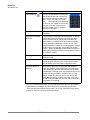
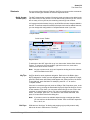
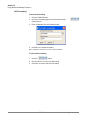
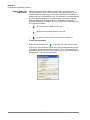
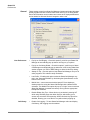
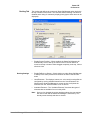
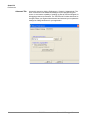
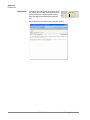
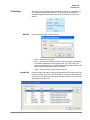
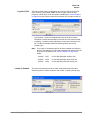
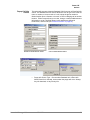
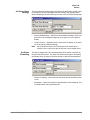
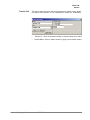
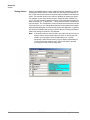
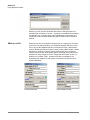
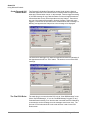
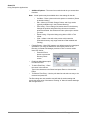
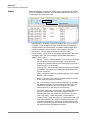
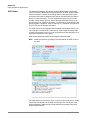
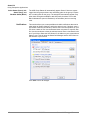
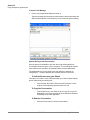
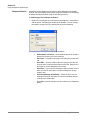
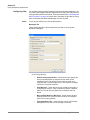
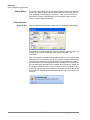
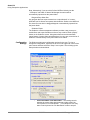
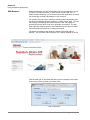
Calls can be added manually, imported or use drag-and-drop techniques as
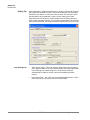
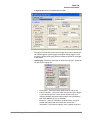
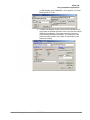
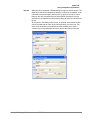
explained below. First, a call can be manually added or changed at any time
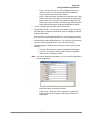
by double clicking on a call in the dialer list. The telephone number must be
entered a name being called and optionally an Account Number and any
Subject as needed. The call can be scheduled by date or elapsed time. The
default date is “Today”, but any date can be entered or a Calendar button is
provided to pick a date for the call. Any time can be entered or any elapsed
time frame can be entered. The pull down list shows some common elapsed
times for placing the call. The call record will need to be enabled to be dialed
at the appointed time.
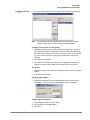
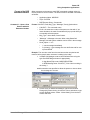
Methods for Adding Calls
Often times you may want to add multiple calls from contact or call
information that might be contained in other applications. The Dialer provides
a couple of ways to accomplish this.
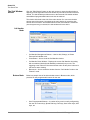
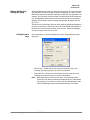
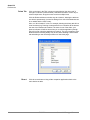
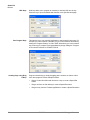
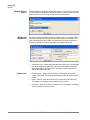
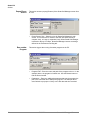
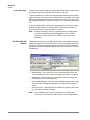
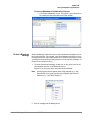
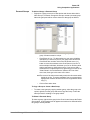
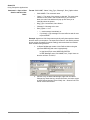
Drag-and-Drop from MS Outlook
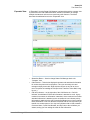
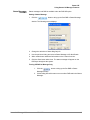
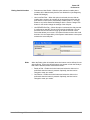
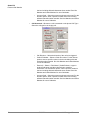
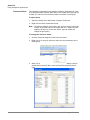
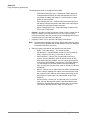
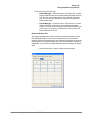
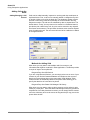
If you are using Microsoft Outlook, you can simply select one or more of your
contacts in your Outlook Contacts database and simple use the mouse to
drag them over and drop them on the power dials “Calls Window”. Each
contact will then be individually added to the power dialer allowing you to
specify the date/time of each call to be placed.
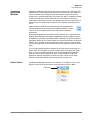
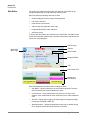
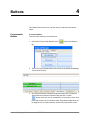
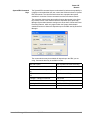
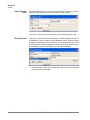
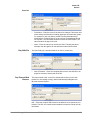
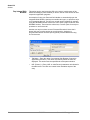
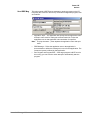
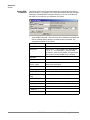
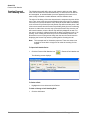
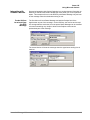
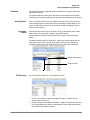
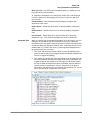
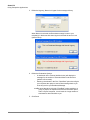
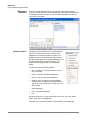
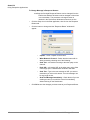
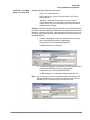
Drag-and-Drop from Strata Call Manager Call History
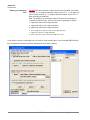
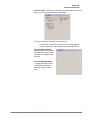
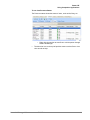
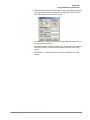
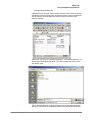
Often times you may want to place a call to someone you’ve called (or who
called you) in the past. Since the Strata Call Manager call history provides a
complete list of all calls placed and received, you can simply find the desired
call in the call history and use the mouse to drag-and-drop a copy over to the
power dialer window.
132
TOSHIBA
Strata Call Manager UG