1
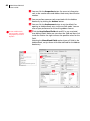
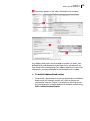
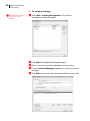
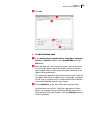
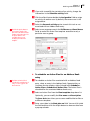
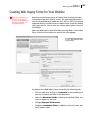
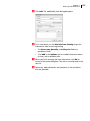
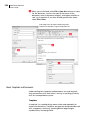
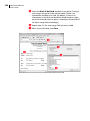
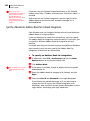
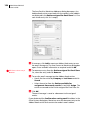
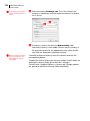
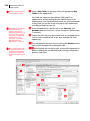
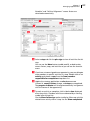
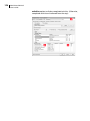
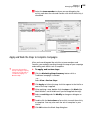
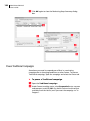
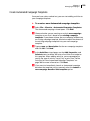
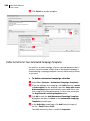
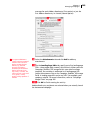
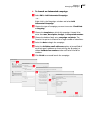
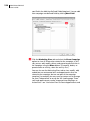
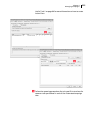
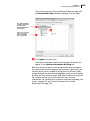
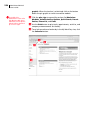
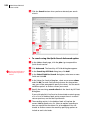
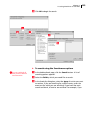
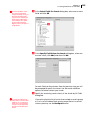
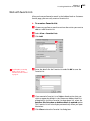
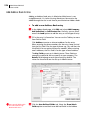
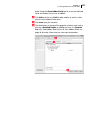
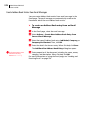
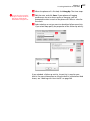
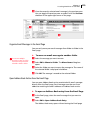
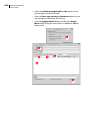
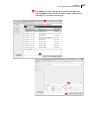
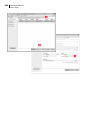
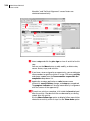
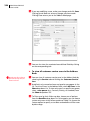
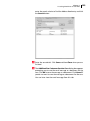
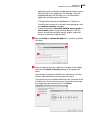
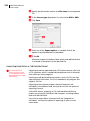
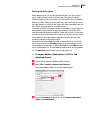
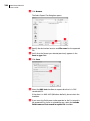
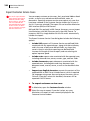
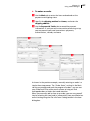
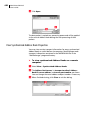
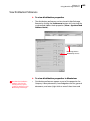
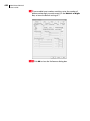
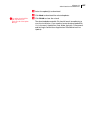
202 Maximizer CRM 10.5 User’s Guide If you are creating an email activity, continue with the following steps. For fax and print activities, click OK to save the activity. LRecipients will see the name and email address that you enter here so it should be recognizable by the recipients. For example, the name could be your company name, as in Maximizer Software, and the address could be something like [email protected]. Select the Email Addresses tab at the top of the Add Email Activity dialog box. Specify a sender name and address. Specify a “reply to” name and address. Replies to the email activity are sent to this address. If you are targeting a large audience, it may be useful to set up an email address specifically for replies. If you wish, use the “Cc:” and “Bcc:” fields to define a “carbon copy” or “blind carbon copy” recipient. This can be useful if you want to send a copy of an email message to yourself or to another person in your company, as well as to the targeted recipients. Use the Include in all the emails or Include in the first email only options to ensure the Automated campaign is working by sending someone, such as yourself, a copy of the email message for this campaign activity. The cc and bcc recipients can receive a