1
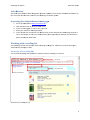
Reading Lists Online Staff User Guide a.
b.
c.
d.
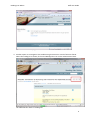
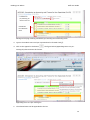
Title: The title of the category. Note: Presented as text below the title of the category. Type: One option of essential, recommended or background must be selected. Student to purchase?: A flag to specify students are informed that they need to acquire their own copy of the item. 4. Click on the Add button to create the category. 5. Wait for the page to be updated. Editingacategory
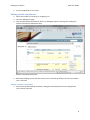
1. Beside the category title is the Edit button (
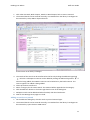
) which will allow the category to be modified. Click the Edit button and the Edit category dialog box will appear. 2. Update the category details and click the Update button. 3. The category details will be updated and the Manage item page will be shown. Deletingacategory
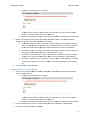
1. Go to the Manage items page. 2. In order to delete a category, it must be empty. 3. Click the Delete button (
) beside the category’s title. 4. A confirmation will be required. Click the Yes button to proceed with removing the category. Changingitemorder
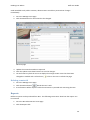
1. Go to the Manage items page. 2. Change the order of items/categories by dragging and dropping them into their appropriate positions. Items can also be moved into different categories in this manner. 3. Click on the Save list order button (
) to save the current order of the list. NOTE: If you attempt to leave the Manage items page without saving the current list order, then a prompt will be displayed warning you. Appendingitemstoalist
Items on a list can be copied onto another pre‐existing list. All appended items will be placed in a category. 1. Go to the Manage items page. Select the items to be appended. The figure below (Manage items page showing checkboxes for selecting and unselecting items 2. ) shows how to select items. 14