1
Working with documents
Scanning documents
Scanning documents to a temporary scan collection
If you have access to a WorkCentre with the Scan to File feature enabled, you can scan
documents to DocuShare. Your WorkCentre administrator must set up a scan template
before you can scan documents to DocuShare. When setting up a scan template, the
administrator can choose to save each document page to a TIFF file or to save all of the
document pages to a single TIFF file. Also, you may be able to use a scan template to
enter DocuShare property values at the device, before scanning the document. After the
document is scanned to a collection, the values you entered appear on the View
Properties page for the document.
Before you begin, check with your administrator to find out which templates are available
for your use and whether or not a password is required.
Note: Depending on which WorkCentre model you use, the steps for scanning a
document can vary. DocuShare does not support scanning color images on a WorkCentre
Pro 40 using JPEG compression (JPEG-in-TIFF).
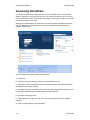
To scan a document:
1. Place a document on the document glass or in the document feeder.
2. Press the Features button.
3. On the touch screen, press the Scan tab.
4. Press Scan to File.
5. Select the scan template.
6. If the template requires a password, do the following:
a. Press Added Features.
b. Press Filing Setups.
c.
Press Login Name/Password.
d. Press Password.
e. Type your password and press Save.
f.
Press Save.
7. If the template allows you to specify property values, enter values for the ones you
want.
8. Press the Start button.
The WorkCentre scans the document and then sends it to the temporary scan collection
on your DocuShare site. The document is stored in this collection for a designated time
period. You can check the time period by clicking WorkCentre Scan Repository on the
DocuShare home page. To keep the document, you need to save it to a permanent
collection.
User Guide
4–15