1
Creating a recipient list for a notification
Setting up notifications
Creating a recipient list for a notification
You can create a recipient list for a notification to have DocuShare notify others when a
change occurs to an object. For example, you may want co-workers to know when a new
version of a document is uploaded or when an object is moved to another location.
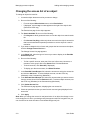
To create a recipient list for a notification:
1. Locate the object that has the notification for which you want to create a recipient
list.
2. Do one of the following:
•
Click the object’s Notifications icon.
•
Click the object’s Properties icon. Then click the Notifications link.
The object’s current notifications display.
3. Click the Properties icon that appears to the right of the notification you want to
change.
The View Properties page appears.
4. Click the Recipients link.
5. Click Change Recipients.
6. In the Show field, select the type of account you want to display in the Possible
Users/Groups field.
7. Do one of the following:
•
To find a specific account, enter part of the user’s first name, last name, or
username or the group’s title in the Search field. Click the Go button.
•
To list all accounts, click Show All (if displayed).
•
To display your favorite accounts, click Show Favorites.
8. In the Possible Users/Groups field, select the accounts to add to the recipient list
and click the Add button. To select multiple accounts, use the CTRL key
(Windows) or the Command key (Macintosh).
9. In the Selected Users/Groups field, select any accounts that you want to remove
from the recipient list and click the Remove button. To select multiple accounts,
use the CTRL key (Windows) or the Command key (Macintosh).
10. Click Update.
5–4
User Guide