1
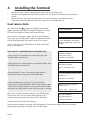
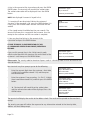
All instructions to be carried out by the customer are
denoted by this shaded display.
At this time you should hand the terminal to the
customer and ask them to follow the instructions
displayed.
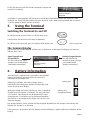
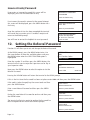
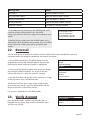
Amount
55.00
PIN ****
Cardholder to key PIN
Enter=OK Clear=REKEY
Entering Letters
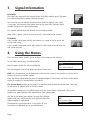
You may need to enter letters using your terminal. Most numeric buttons have alphabetical
characters allocated to them.
e.g. the number 2 button has a, b and c allocated to it
e.g. the number 5 button has j, k and l allocated to it
To enter a letter, press the relevant number button and then the MENU button to scroll through the
letters until you select the character required. To enter the next letter you must again select the
relevant number button. To enter a space press the 0 button followed by the MENU key.
If a mistake is made when entering numbers or letters, press the YELLOW button until the incorrect
numbers or letters have been removed. Then re-key the correct entry.
Once all the numbers or letters have been entered press the GREEN button to accept the entry.
Inserting a Chip Card
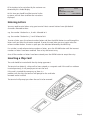
The card should be inserted with the chip facing uppermost.
The terminal can detect if a chip card has been swiped as a magnetic card. If the card has not been
inserted previously, it will prompt you to insert the card.
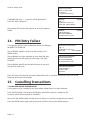
If the card is inserted the wrong way or there is a
problem with the chip, the terminal will prompt for the card to be
removed and re-inserted.
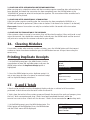
The terminal will prompt you when the card is to be removed.
Page 9