1
DocuShare content rules
Creating a content rule
Creating a content rule
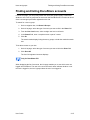
DocuShare provides a wizard to guide you in creating a content rule. Using the wizard,
you provide a brief description of the content rule, select the event that triggers the action,
select the action to run, and enter settings specific to the selected action.
You can create a content rule for an object if you are logged in and have Manager
permission to the object.
Note: Avoid creating a content rule that repeats itself as it will be disabled after a certain
number of repetitions. For example, if you create a content rule that changes a
property (action to run) when either any change or a property change occurs (event
trigger), the rule will continue to repeat until it is disabled. It is a good idea to refine
the event by specifying additional options on the Content Property Conditions
page.
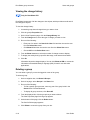
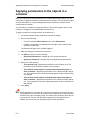
To create a content rule:
1. Locate the object for which you want to create a content rule.
2. Do one of the following:
•
Click the object’s Content Rules icon.
•
Click the object’s Properties icon. Then click the Content Rules link.
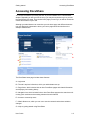
3. On the Content Rules page, click Create a New Content Rule.
The Create a New Content Rule wizard appears. The following steps describe the
required fields. For information about any of the optional fields in the wizard, click
the appropriate field name.
4. On the Description page, enter a Title for the content rule and click Next.
5. On the Event Triggers page, select the event that will cause the action to occur
and click Next.
6. On the Content Property Conditions page, refine the event trigger by specifying
property conditions. Then click Next.
7. On the Action Performed page, select the action to run when the event occurs and
click Next.
The Action Settings page appears. The options on the page vary depending on
the action you selected in the previous step.
8. Enter the appropriate information and click Next.
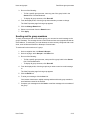
9. On the Completion Settings page, you can choose to set a property value on the
object when the content rule completes. In addition, you can append the property
value to any existing property values. Then click Done.
The View Properties page for the content rule appears and provides a summary of
the content rule.
User Guide
13–3