1
Online meetings
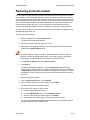
Scheduling an online meeting
Scheduling an online meeting
You schedule an online meeting by specifying the meeting information and selecting the
attendees. When you are finished, an email message is sent to each attendee with the
information needed to join the meeting.
An online meeting is associated with a collection or a workspace as two URLs are added
to the container after the meeting is created: one URL is for the meeting host and the
second URL is for the meeting attendees.
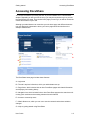
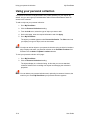
To schedule an online meeting:
1. Locate and open a site collection or workspace.
2. Click the Meet Online icon in the upper-right corner of the window.
3. If the WebEx Login Page appears, enter your WebEx login information and click
the Login button.
The WebEx Login Page appears if you have not logged into the WebEx meeting
site during your current DocuShare session.
4. On the Properties page, enter the following information:
Meeting Name—The name of the meeting.
Meeting Passcode—The passcode required to join the meeting.
Start Date—The date of the meeting. Immediately schedules the meeting right
away.
Start Time—The meeting start time.
Duration—The length, in minutes, of the meeting.
Time Zone—The time zone in which the meeting is to occur.
Invitation Text (optional)—The meeting invitation message.
5. Click Next to go the Attendees page.
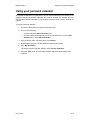
6. In the Your Email field, enter the email address from which the meeting invitation
will be sent.
7. In the Show field, select the type of account you want to display in the Possible
Users/Groups field.
8. Do one of the following:
•
To find a specific account, enter part of the user’s first name, last name, or
username or the group’s title in the Search field. Click the Go button.
•
To display all accounts, click Show All.
•
To display your favorite accounts, click Show Favorites.
9. In the Possible Users/Groups field, select the accounts to add to the list of
recipients and click the Add button. To select multiple accounts, use the CTRL
key (Windows) or the Command key (Macintosh).
10. In the Selected Users/Groups field, select any accounts that you want to remove
from the list of recipients and click the Remove button.
User Guide
16–3