1
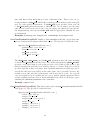
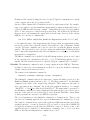
2. Create compatible Tcl/Tk import libraries.
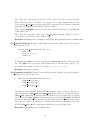
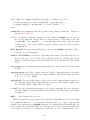
The Digital Mars linker uses the same library format as the Borland linker, and as in
that case, you will have to build compatible import libraries for the Tcl/Tk libraries.
The free download from Digital Mars does not include a utility to create these import
libraries. If you have purchased the compiler from Digital Mars, you can use the coff2off
or implib tools for this. See the documentation for details. Another option is to use
the Borland tools. See the section above on using Borland C++ for details.
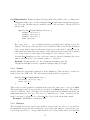
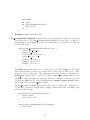
3. Edit oommf\config\platforms\wintel.tcl.
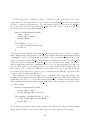
You will need to uncomment the entry for the dmc compiler, and comment out the
other compiler selections. (The comment character is ’#’.) The configuration file
assumes that the dmc compiler and associated tools are in a directory included in your
environment PATH variable.
After this, continue with the instructions in Sec. 2.2.3, Compiling and Linking.
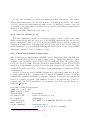
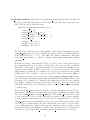
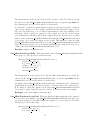
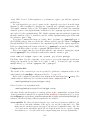
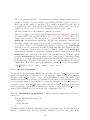
Setting the TCL LIBRARY environment variable If you encounter difficulties during OOMMF start up, you may need to set the environment variable TCL LIBRARY.
On Windows NT Bring up the Control Panel (e.g., by selecting Settings|Control
Panel off the Start menu), and select System. Go to the Environment tab, and enter
TCL LIBRARY as the Variable, and the name of the directory containing init.tcl for the
Value, e.g.,
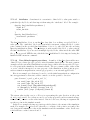
%SystemDrive%\Program Files\Tcl\lib\tcl8.0
Click Set and OK to finish.
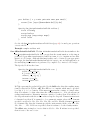
On Windows 9x Edit the file autoexec.bat. Add a line such as the following:
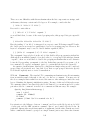
set TCL_LIBRARY=C:\Program Files\Tcl\lib\tcl8.0
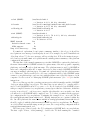
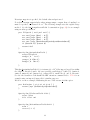
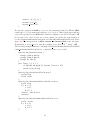
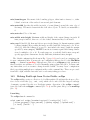
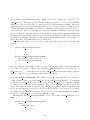
Checking .tcl file association on Windows NT As part of the Tcl/Tk installation,
files with the .tcl extension are normally associated with the wish application. This allows
Tcl scripts to be launched from Windows Explorer by double-clicking on their icon, or from
the NT command line without specifying the tclsh or wish shells. If this is not working, you
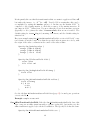
may check your installation from the NT command line as follows. First, run the command
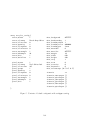
“assoc .tcl”. This should return the file type associated with the .tcl extension, e.g.,
TclScript. Next, use the ftype command to check the command line associated with that
file type, e.g.,
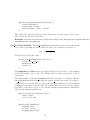
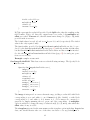
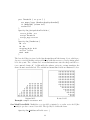
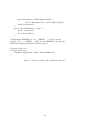
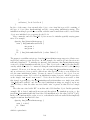
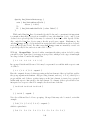
C:\> ftype TclScript
"C:\Program Files\Tcl\bin\wish84.exe" "%1" %2 %3 %4 %5 %6 %7 %8 %9
19