1
Contents
1.
2.
Check List
First Steps
4
5
2.1.
Decide how scanner is to be used
Scan and analyse at one location
Scan at Fleet but analyse at another office.
3.
4.
5.
6.
Installing the Panasonic Scanner KV-S1025C
Configuring the Panasonic KV-S1025C
Installing TIS-Web Scanner software
Installing the TIS-Web Automatic Upload Service
6.1.
6.2.
7.
System requirements
Installing TIS-Web Automatic Upload
5
5
5
6
7
9
10
10
11
Configuring TIS-Web Automatic Upload
14
7.1.
To set up the application for automatic data transfer
7.2.
Configuring the Download Frequency
7.3.
Configuring the Internet connection
7.4.
Adding TIS-Web accounts
7.5.
Monitoring Data uploads to TIS-Web
Charts
Files
14
14
15
15
17
17
18
8.
Post-installation steps and changing installation settings
8.1.
8.2.
9.
Setting up service permissions
Changing installation settings
TIS-Web Scanner Client
9.1.
10.
11.
Configuring TIS-Web Scanner Client
Starting TIS-Web Scanner Client
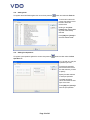
Set the Chart Image Directory
Setting the chart parameters
Setting Scan Parameters
Exiting TIS-Web Scanner Client
Scanning Charts
11.1.
11.2.
11.3.
11.4.
11.5.
11.6.
11.7.
11.8.
11.9.
11.10.
11.11.
11.12.
11.13.
11.14.
11.15.
12.
19
20
21
Installing TIS-Web Scanner Client
10.1.
10.2.
10.3.
10.4.
10.5.
19
21
25
25
25
26
27
27
28
Scanning Process
Chart Preparation
Starting to scan
Starting the TIS-Web Scan Client
Completing Centre Field Data
Viewing the rear of the chart
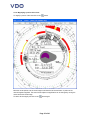
Displaying the time and range of the chart
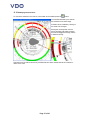
Adding faults
Adding Port Operations
Magnifying a portion of the chart
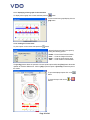
Displaying a linear graph of chart activities
Printing the current chart
Modifying Chart activities
Splitting a chart for multiple vehicles
Uninstalling the TIS-Web Scanner Client
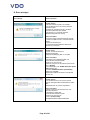
Error messages
28
28
28
30
32
33
33
34
34
35
36
36
37
38
39
40
Page 3 of 40