1
Chapter 9: Reviews
Managing Reviews
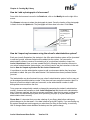
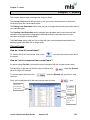
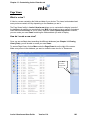
How do I view reviews?
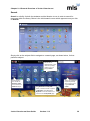
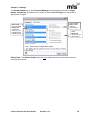
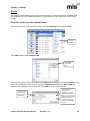
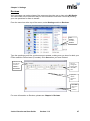
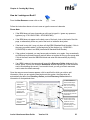
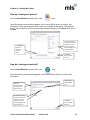
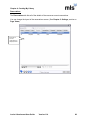
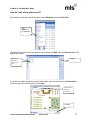
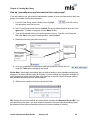
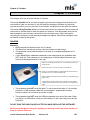
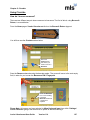
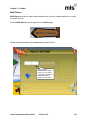
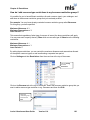
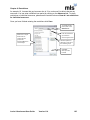
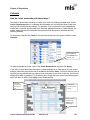
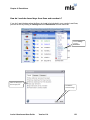
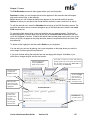
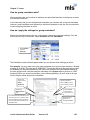
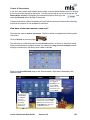
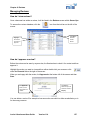
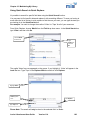
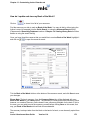
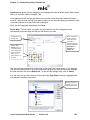
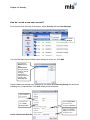
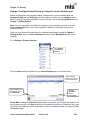
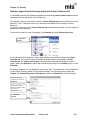
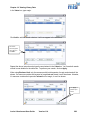
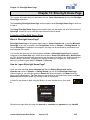
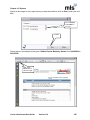
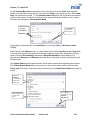
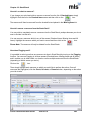
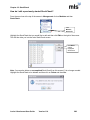
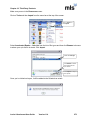
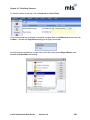
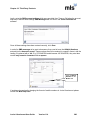
Once a borrower has written a review, it will be listed in the Reviews screen within Grown Ups.
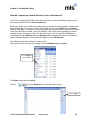
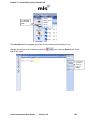
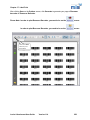
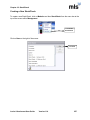
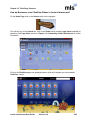
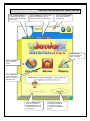
To access the reviews database, click the
screen.
icon from the tool bar on the left of the
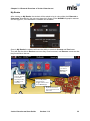
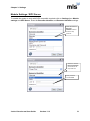
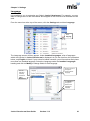
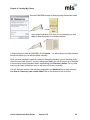
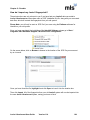
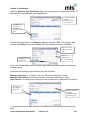
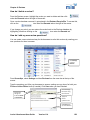
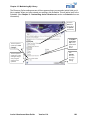
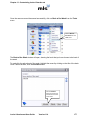
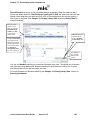
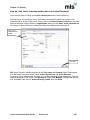
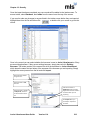
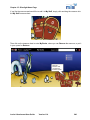
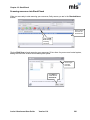
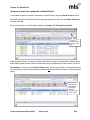
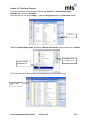
Click Edit to
view the
review
details
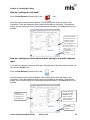
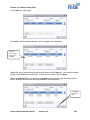
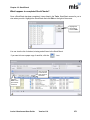
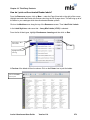
Highlight
the review
you want to
approve
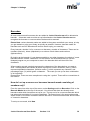
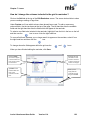
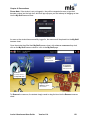
How do I approve a review?
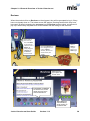
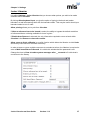
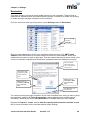
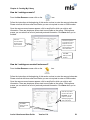
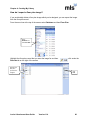
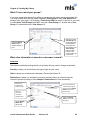
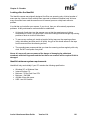
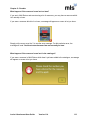
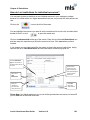
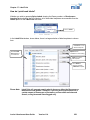
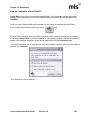
Before the review can be seen by anyone else, the librarian has to check it for content and then
approve it.
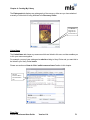
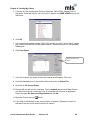
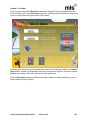
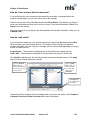
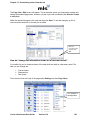
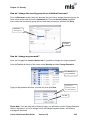
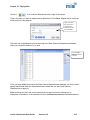
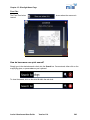
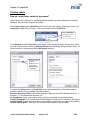
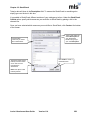
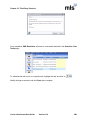
Highlight the review you want to view and then either double click your mouse or click
under the Records tab on the right of the screen.
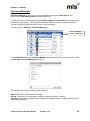
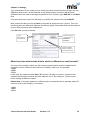
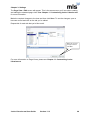
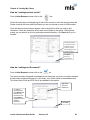
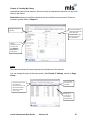
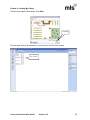
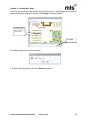
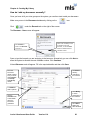
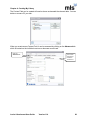
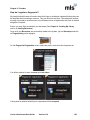
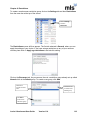
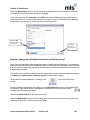
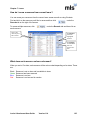
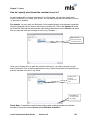
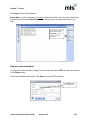
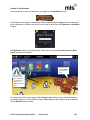
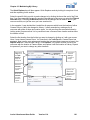
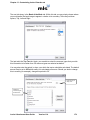
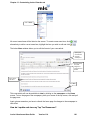
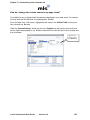
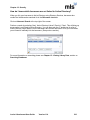
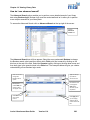
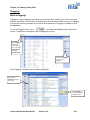
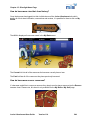
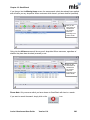
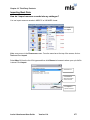
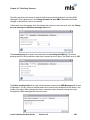
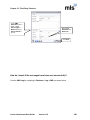
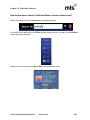
When you are happy with the review, tick Approved at the bottom left of the screen and then
Save.
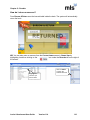
Click Save to
allow everyone to
view the review in
Enquiry.
Tick Approved
when you are
happy with the
review
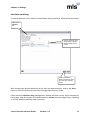
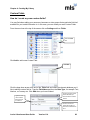
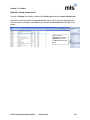
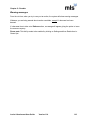
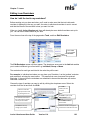
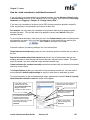
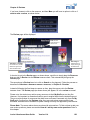
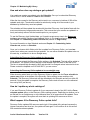
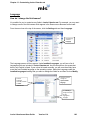
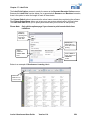
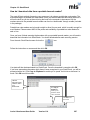
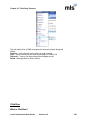
You can delete a review if for example a borrower writes one which is either unsatisfactory or is
for the wrong resource.
Junior Librarian.net User Guide
Version 11.4
157