1
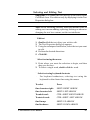
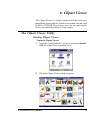
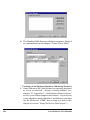
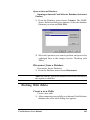
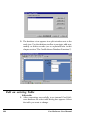
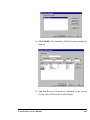
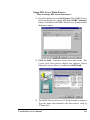
Note: The Clipart Viewer searches automatically for Clipart
Volume I or II at drive C, D, E and F. If Clipart Volume I or II are
not found, it opens with a blank screen.
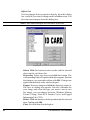
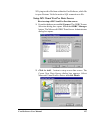
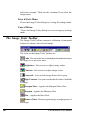
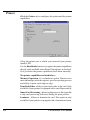
Clipart Viewer Toolbar
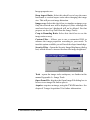
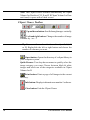
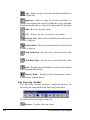
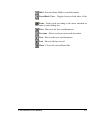
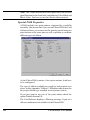
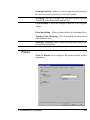
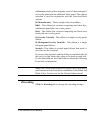
Up and down button: Scrolls through images vertically.
Left and right button: Changes the number of image
columns by + or - 1.
Tip: You can set the number of columns directly to 2, 4, 8, 12
or 20. Right-click the left or right button and choose the
number of columns you want.
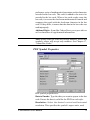
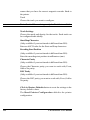
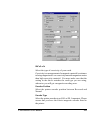
Open button: Opens the directory of a clipart library in
your computer system.
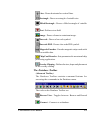
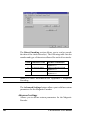
Quick Browse: Two drop down menus to quickly select the
image category you want. Choose between black & white
images and select one of the categories available in Clipart
Volume I or II.
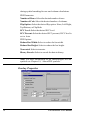
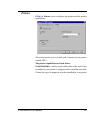
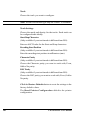
Print button: Prints a page of all images in the current
directory.
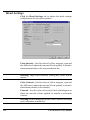
Info button: Displays information on number 5 software.
Close button: Exits the Clipart Viewer
76
Card Software User Manual