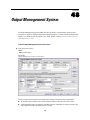
1
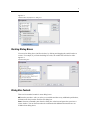
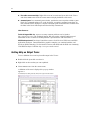
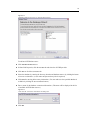
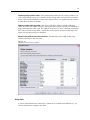
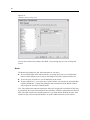
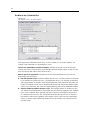
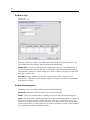
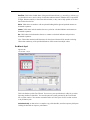
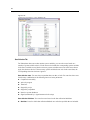
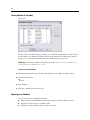
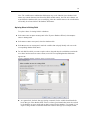
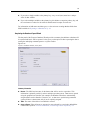
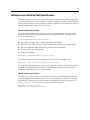
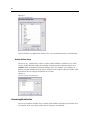
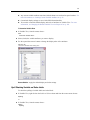
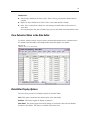
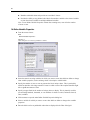
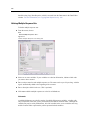
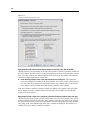
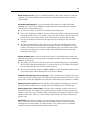
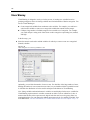
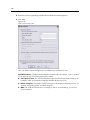
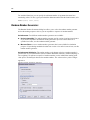
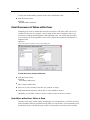
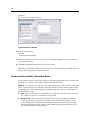
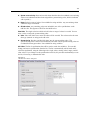
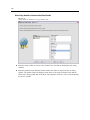
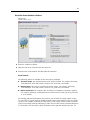
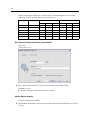
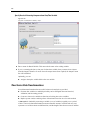
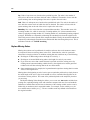
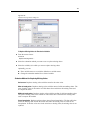
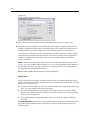
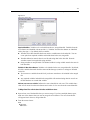
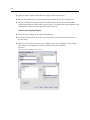
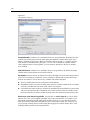
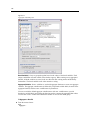
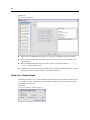
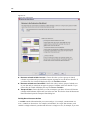
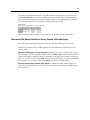
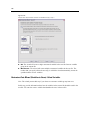
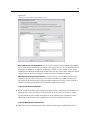
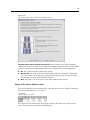
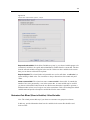
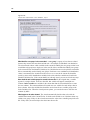
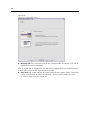
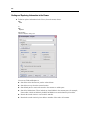
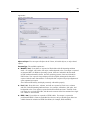
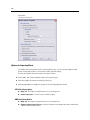
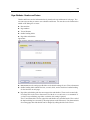
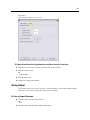
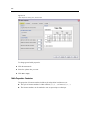
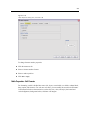
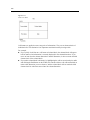
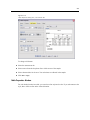
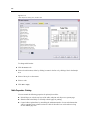
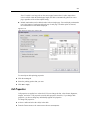
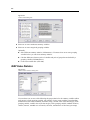
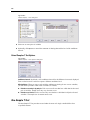
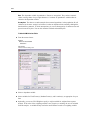
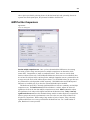
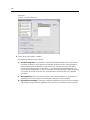
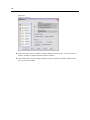
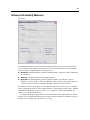
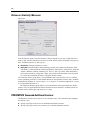
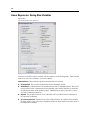
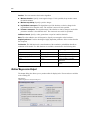
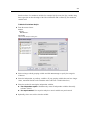
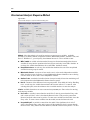
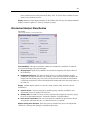
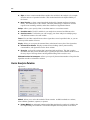
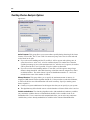
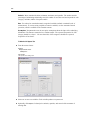
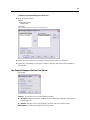
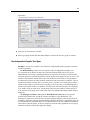
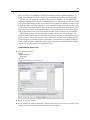
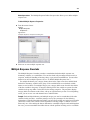
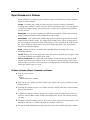
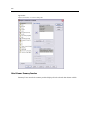
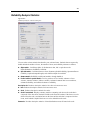
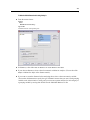
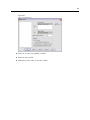
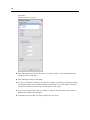
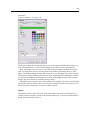
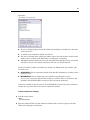
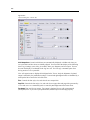
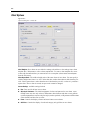
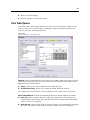
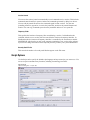
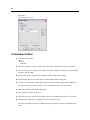
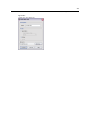
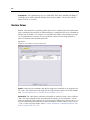
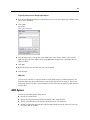
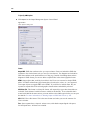
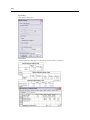
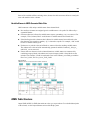
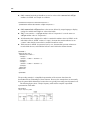
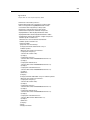
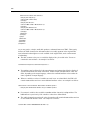
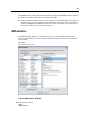
99 Data Preparation E If there are values for which you want to create value labels but those values are not displayed, you can enter values in the Value column below the last scanned value. E Repeat this process for each listed variable for which you want to create value labels. E Click OK to apply the value labels and other variable properties. Defining Value Labels and Other Variable Properties Figure 7-2 Define Variable Properties, main dialog box The Define Variable Properties main dialog box provides the following information for the scanned variables: Scanned Variable List. For each scanned variable, a check mark in the Unlabeled (U.) column indicates that the variable contains values without assigned value labels. To sort the variable list to display all variables with unlabeled values at the top of the list: E Click the Unlabeled column heading under Scanned Variable List. You can also sort by variable name or measurement level by clicking the corresponding column heading under Scanned Variable List. Value Label Grid Label. Displays any value labels that have already been defined. You can add or change labels in this column. Value. Unique values for each selected variable. This list of unique values is based on the number of scanned cases. For example, if you scanned only the first 100 cases in the data file, then the list reflects only the unique values present in those cases. If the data file has already