1
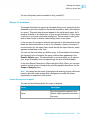
To set user preferences in Web Intelligence Rich Client
To change your password
•
•
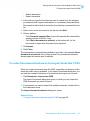
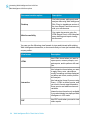
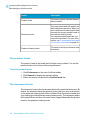
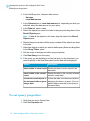
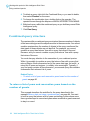
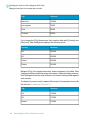
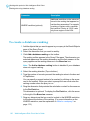
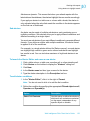
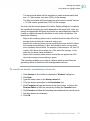
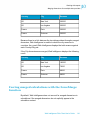
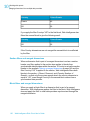
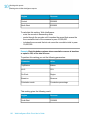
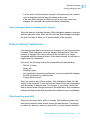
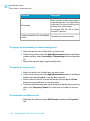
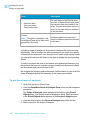
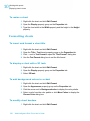
Start drill on duplicate report: When you start a new drill session, a
duplicate report is opened in the document and you drill on the duplicate.
When you end drill mode, both the original report and the drilled report
remain in the document.
Start drill on existing report: When you start a new drill session, the
current report becomes drillable. When you end drill mode, the report
displays the drilled values.
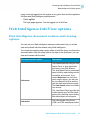
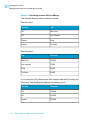
General drill options
•
•
•
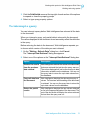
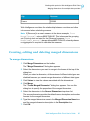
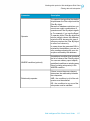
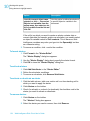
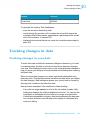
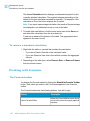
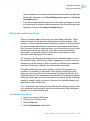
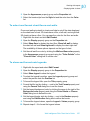
Prompt if drill requires additional data: You are prompted when Web
Intelligence needs to retrieve additional data to complete the drill, and
can decide whether to go ahead. If the amount of data is large, the retrieval
can take time and you may decide not to drill. When this option is not
selected, Web Intelligence retrieves the additional data without prompting
you.
Synchronize drill on report blocks: When this is selected, drilled values
are shown in all the report blocks in the report. When it is not selected,
drilled values are shown only in the report block selected for the drill.
Hide drill toolbar: When this is selected, the drill toolbar that is normally
displayed at the top of drilled reports is not shown. The drill toolbar
displays the value on which you drilled. It is only useful if you want to
select filters during your drill session.
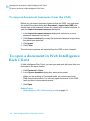
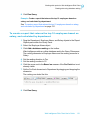
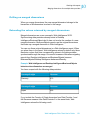
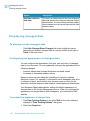
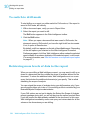
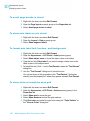
To change your password
You can only change your password from Web Intelligence Rich Client if you
are in client-server connection mode: you must have launched Web
Intelligence Rich Client locally rather than from InfoView.
1.
2.
3.
4.
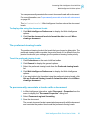
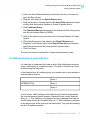
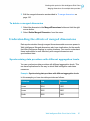
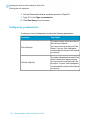
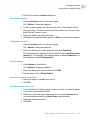
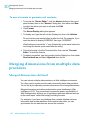
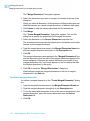
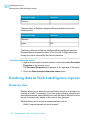
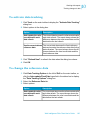
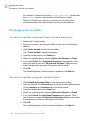
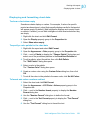
Click Tools > Change Password.
Type your current password in the Enter Old Password box.
Type your new password in the Enter New Password box.
Type your new password again in the Confirm New Password box.
Your password is changed to the new password.
Web Intelligence Rich Client User's Guide
45
5