1
Troubleshooting
Page 69 of 187
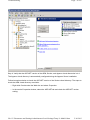
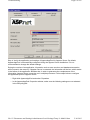
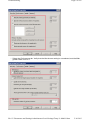
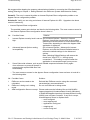
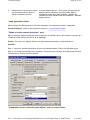
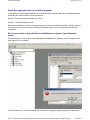
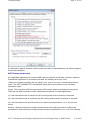
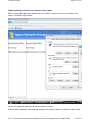
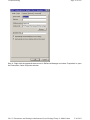
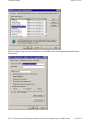
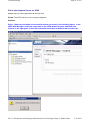
Step 3 - Go to AEM | Security | Application Settings and click your application. Assign "Security On"
in User authentication.
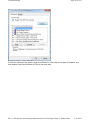
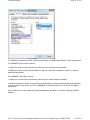
Note: Make sure your settings are configured efficiently and clear the history in Internet Explorer
before opening the application. Restart EAServer and client machine if necessary.
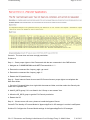
JBoss console reports “…Stopped deployment appeonserver.jar…” error
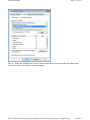
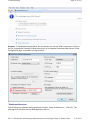
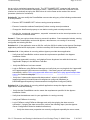
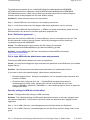
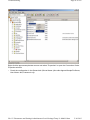
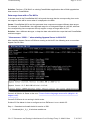
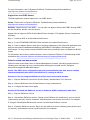
The JBoss server console reports the “…Stopped deployment appeonserver.jar…” error (see figure
below) during the startup process.
Cause 1: There is not enough space left on the hard drive. Usually this will be explicitly indicated by
the following message in the log file:
Caused by: java.io.IOException: No space left on device
Solution 1: Stop JBoss server. Clean up the temporary files under JBoss server (typically, %
JBOSS_HOME%\standalone\tmp) or clean up the hard drive to get more available space.
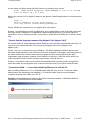
Cause 2: The deployment has timed out. Usually you will see the following message in the log file:
“Did not receive a response to the deployment operation within the
allowed timeout period [60 seconds]. Check the server
configurationfile and the server logs to find more about the status
of the deployment.”
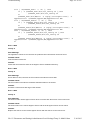
Solution 2: Increase the timeout value for deployment in JBoss AS by the following steps:
Step 1: Open the %JBOSS_HOME%\standalone\configuration\standalone.xml file in a text editor.
file://C:\Documents and Settings\Administrator\Local Settings\Temp\1\~hh6081.htm
5/16/2013