1
User's Guide 3.6 US.QXD 3/11/99 3:58 PM Page 113
2.38 Disk operations
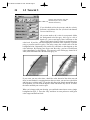
CHANGING THE PAGE SIZE
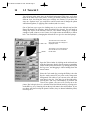
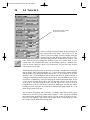
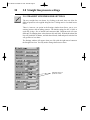
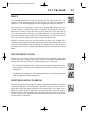
When you load a project, two things can happen: the size of the drawing in the
project and the size of the page are the same or are not. If they are the same, then
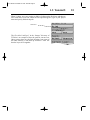
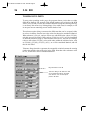
the project is loaded seamlessly. If they are different, a window pops up and offers
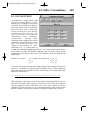
you the following options:
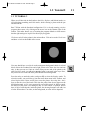
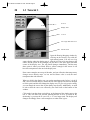
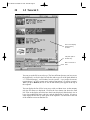
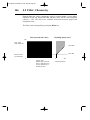
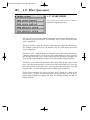
Resize page: Alters the size of the current working page to fit the project’s size you
are loading. It will make the page bigger or smaller to fit the picture. If the project
is bigger than the screen, you will then have to scroll around the page to see it all.
If the project is smaller than the screen, then the image will be placed in the middle
of the screen, and the surrounding area will be cleared with a neutral color.
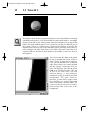
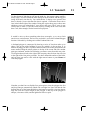
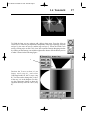
Crop project: Loads the project without changing the size of the page. The top left
hand corner of the project is placed onto the top left hand corner of the page. If the
project is bigger than the page, then the bottom and right of it will be lost. If the
project is smaller than the page, then the bottom right hand side of the page will be
unchanged.
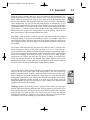
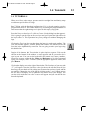
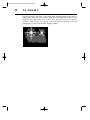
Resize project: Loads the project and scales it to fit the page. If it is smaller than
the page, it is enlarged to fit; if it is larger than the page, then it is reduced to fit.
Resizing a project in this way is not recommended because when reducing, pixels
are lost from the project, and on enlargement the project will blur a little. This
function is best avoided if possible.
You need to understand the difference between the screen size, set to a particular
resolution by your graphics card (like 640 x 480 or 800 x 600 pixels), your page
size, the size of your drawing area (which will usually be the same size as your
screen, but that can be changed), and the project size, the size of the picture (which
will either be changed to fit the page or will become also the new page size).
113