1
12
Appendix A
Appendix A
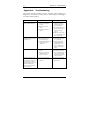
Troubleshooting
Troubleshooting
This section describes problems you may encounter when installing your
Kingston PC Card Reader, as well as how to contact Kingston Technology if
you require technical support.
Symptom
Installation program cannot
be successfully completed.
Possible Cause
(1.) Power to the PC Card
Reader is not installed
properly.
(2.) Defective devices or
cables.
(3.) Incompatible devices or
cables.
Suggestion
(1.) Make sure the PC Card
Reader’s power and
interface cables are all
properly connected.
(2.) Try to install the PC Card
Reader on another PC to
ensure it is working
properly.
(3.) Make sure you are using
an ATA compatible Type
II PC Storage Card.
PC Card Reader cannot be
connected, Physical driver=0;
Logical drive =0
(1.) Improper connection
(1.) Check all connections
(2.) PC Card Reader is not
powered-up properly.
(2.) Check the power to the
PC Card Reader.
(3.) Conflict with other device's
IRQ number (such as
sound card).
(3.) Assign different IRQ
numbers to the device or
add parameter to the
driver to either disable
IRQ or use other IRQ
setting.
LED is not lit.
(1.) Power is not supplied to
device.
(2.) The access LED is not
lighted when PC Card
Reader is accessed.
(1.) Check power connection.
(2.) The LED may be bad or
the PC Card Reader may
not be working properly.
Replace the PC storage
card and try again.
Problem with printing jobs
under Windows environment
when printer is connected to
PC Card Reader’s printer
pass-through port. It does not
have this problem if the
printer is connected to host
computer directly.
(1.) The fast printing option in
Windows printer set up is
enabled.
(1.) Disable the fast printing
option in Windows
printer set up.
Kingston Technology Company
PC Card Reader User’s Guide - Rev. A00