1
Content Server
User Guide
Login
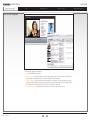
What’s in this user guide?
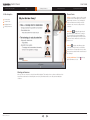
In this chapter…
Viewing Conferences
Creating Conferences
Frequently Asked Questions
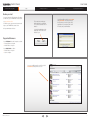
Call information
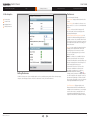
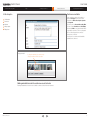
Choose Create Conference from the Conference Set Up Menu ..
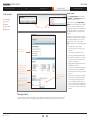
Recording Alias—Choose the recording alias to
use. Your Administrator will have given you your
own Personal Recording Alias to use or will advise
you which System Recording Alias to use.
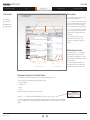
Call Information
Permissions
Metadata
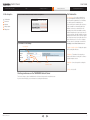
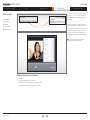
Select an “alias for live streaming’ if the conference
is to be viewable live, or immediately after it has
finished. Conferences recorded with ‘non-live
streaming’ aliases will not be available for viewing
until their outputs have been processed. How soon
your recorded-only calls will be available for viewing
will depend on how many other conference outputs
the Content Server is processing at the time or how
many calls are in process. You can see if outputs
for your conference are being processed from the
Pending list from the View Conferences menu.
Manage outputs
Editing viewer
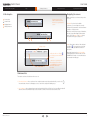
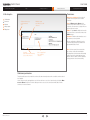
... you will then see the following:
Recording Alias
Template Output Description—Displays the outputs
the Recording Alias will create.
Dial Number—The number of the endpoint you
want to call to initiate a recording of the conference
using the template selected.
Call Type
Bandwidth
Dial Number
Template
Output Description
Bandwidth—Connection speed for recording the
call.
Call Type—H.323 or SIP.
Creating conferences on the TANDBERG Content Server
The Create Conference option is available from the Conference Setup menu for owners but not users.
If you have Owner Privileges, you can make ad hoc recordings from the interface.
D14111.05—May 2009
8