1
Destinator ND User Guide
You can add a category by tapping the Tools menu and choosing Add. Tap a name for
your category (“friends”, for example) and also you can choose a picture. Tap Save
when finished.
To see what addresses are stored under a category, tap the category name and tap
Items at the top. You cannot add a favourite address here.
Highlight an address and tap Navigate to start a journey.
To add an address to a category, press the Back (<-) button to exit back to the
Destination window, and then choose Address. Find your address as normal, but
instead of tapping Navigate, choose Tools, then Favourites. You may then tap a name
for the address (such as “Steve’s house”), an optional comment, then choose the
category you want to add it to (such as “friends”).
10. Resetting
Should you ever run into a problem with the software, there are 2 methods of resetting
the unit. The soft reset (no data will be lost) is performed by unscrewing the top of the
stylus and poking the reset button next to the SD card slot on the side of the unit.
A Hard reset (resulting in saved data being lost) is performed by moving the switch on
the back of the unit to the ‘off’ position for 10 seconds and then moving back to ‘on’.
11. Spares and Accessories
The following spares are available on www.lowestonweb.com
European map upgrade on 2 CDs (includes EU version of Console)
Spare car mounting kit
PNA cradle
Spare USB Sync Cable
Spare car charger
Spare mains charger
Stylus 3 pack
Textile Carry Case
External Antenna
Vent Mount
Leather Case
SD cards
12. Reinstalling the SD card
You may need to reinstall the data to your SD card if there has been a problem or it may
be that you have purchased a new SD card with more capacity. You will need to install
both the application and maps to the SD card.
Please follow the following steps to do this:
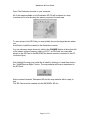
Place the Destinator ND CD-Rom in your PC’s DVD/CD drive.
Open the file structure of the CD using the file explorer.
Search for the “QuickInstall” directory and open it with a double click.
Page 69 of 73