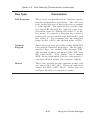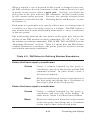
1
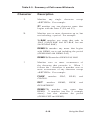
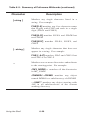
commands submenu items (we’ll learn more about the commands
submenu later in this section.)
To use the print menu, move the arrow cursor to the menu item you
want to select; the system highlights the item name in reverse video.
To select the item, press either the <F1> key, the space bar, or if you
are using a mouse, the left mouse button (M1). (Hereafter, we use the
term select key to refer to any of these keys.) You can also display
help information about an item by moving the cursor over the item and
pressing <HELP>.
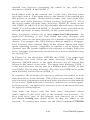
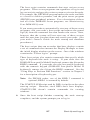
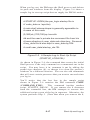
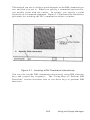
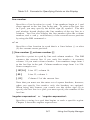
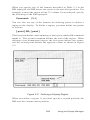
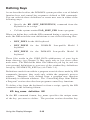
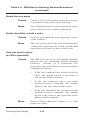
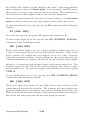
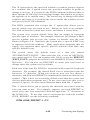
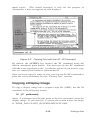
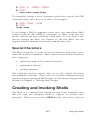
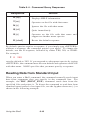
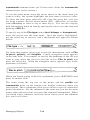
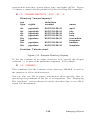
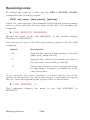
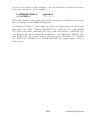
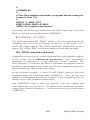
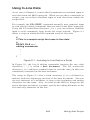
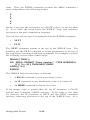
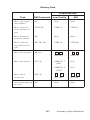
To specify any of the File type: items (text, bitmap, or transparent),
move the cursor over the item name. Once the item is highlighted,
use the select key to select it, and a checkmark will appear as shown
below:
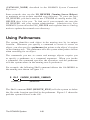
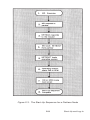
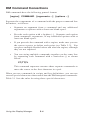
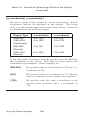
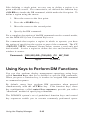
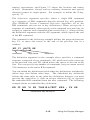
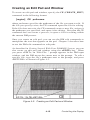
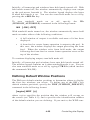
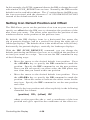
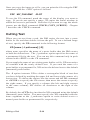
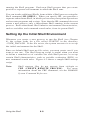
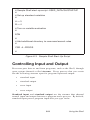
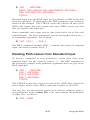
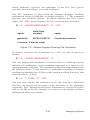
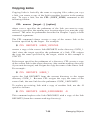
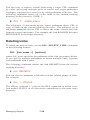
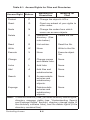
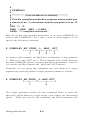
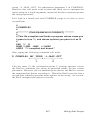
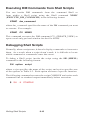
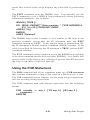
For items that require you to type in specific information, such as File
to print:, printer:, and #copies:, a small, triangular cursor appears
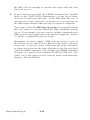
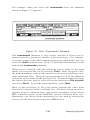
in the item field. For example, to specify the pathname of the file you
want to type, move the cursor to the line next to File to print: and
press the select key. When the triangular cursor appears, type in the
pathname as follows:
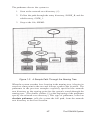
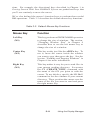
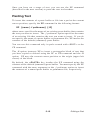
When you finish typing in the file’s pathname, press <RETURN> and
move to another item.
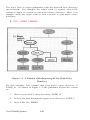
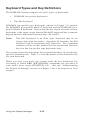
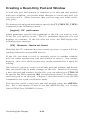
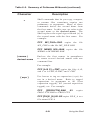
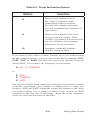
The items along the top row of the menu, and the profile and
commands items on the bottom row, display submenus when you
select them. These submenus allow you to select or specify additional
print information. Use the submenu in the same way you use the main
menu: either select an item, or type in the requested information. When
you finish with a submenu, move the arrow cursor out of the submenu
box, and it will close.
Managing Objects
7-14