1
NorPix, Inc. - www.norpix.com
Technical Support: [email protected]
automatically and TroublePix will carry on recording, either until it runs out of space or you uncheck
Auto Rearm box or manually stop the recording. When recording to RAM, the current sequence is
automatically saved to the Working Folder before creating another one.
3.6 Marking Frames
The primary function of TroublePix is to monitor evolving processes and help you troubleshoot them.
A typical application would be to monitor a production line, linking images with external events that
would be generated when failures occur.
TroublePix can monitor and record multiple events triggered by multiple sources. Each captured
event is associated with an image, based on its time stamp and index in the sequence file. All this
information is presented on the graphical interface by a green symbol called marker.
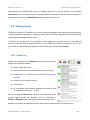
3.6.1 Marker List
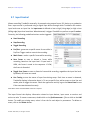
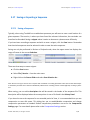
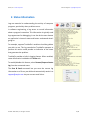
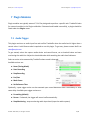
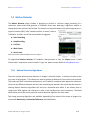
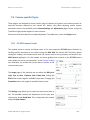
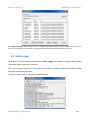
Markers are displayed on the Markers tab window. Each marker
displays the information below:
➔
marker index and name;
➔
frame index and time stamp associated with the marker;
➔
relative time to a reference time stamp (see Time Stamp
Settings);
➔
relative time to previous marker;
➔
a description;
➔
an icon whose color indicates whether the marker is valid
or not (green = valid, gray = invalid).
While recording, the Marker List cannot be accessed, so all of the
markers appear grayed out. However, the list is available in
Review or Playback mode, allowing access to valid markers only.
Markers are listed chronologically, with the most recently captured event on top of the list.
© 2006 - 2014 NorPix, Inc. All rights reserved.
21/81