1
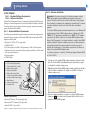
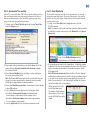
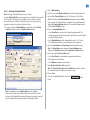
ET-based Run Time - Select this option to enable station run times to be
recalculated at the day change time based on the ET Total for the program.
Note: To utilize ET-based run time, a Plant Factor (other than 0) and an
Application Rate (entered in Zone Data or the Slot Editor) must be
selected. When the ET-based run times option is selected, the ET Total
selection box and Send button will be enabled.
1. Choose the Program toolbar Receive button to receive the ET Total data
from the satellite.
2. Send the ET Total to the satellite by
choosing the Send toolbar button.
3. Control/click on the ET value box to
recalculate and update station run time.
Takes starts and repeats into account and matches what the satellite unit
would recalculate using the same ET value.
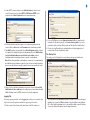
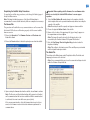
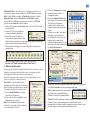
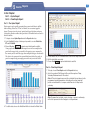
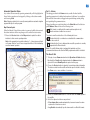
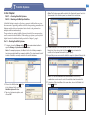
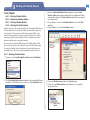
ET-based stations will appear green in the Slot Editor as shown in the
example below.
18
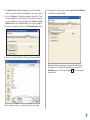
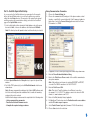
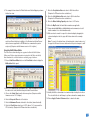
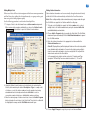
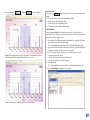
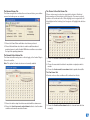
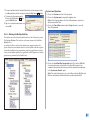
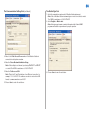
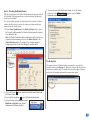
3. Choose the Calendar tab to display
the watering day schedule in a
calendar-day format.
4. Choose the Overlay 6 Week button
at the bottom of the calender window.
The 6-week (every third day)
schedule will be overlaid on the
calendar, indicating the active days
in bold.
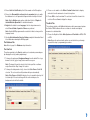
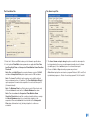
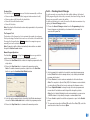
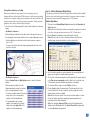
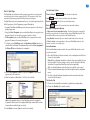
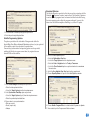
5. To name the schedule, enter a brief
description in the text box, then
choose Save. As shown below, the
watering day schedule with its
schedule number and name are now
associated to the number indicated in
the Selected Schedule box.
Note: Run times shown are based on the following formula:
Run time = (ET Total/Precipitation Rate) x Plant Factor %.
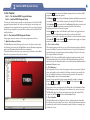
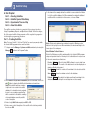
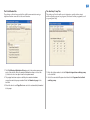
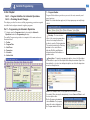
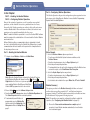
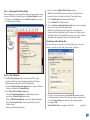
All watering day schedules are defined within this form. Active days can be
scheduled by selecting individual check boxes or by selecting one of the
pre-configured schedules provided in the selection menu.
5 – Watering Day Schedules
In the following step-by-step example, a 6-week rolling schedule is set to
water every third day (a three-day interval).
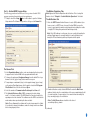
Note: Multiple 2-day and 3-day Interval
schedules are listed in the menu. For example,
Every Third Day is listed three times to provide
three initial start days of the interval period.
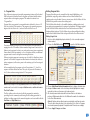
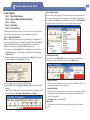
1. Scroll to Every Third Day - 3 schedule
option on the rolling menu.
2. Click on the selection to highlight it in blue.
Watering days are checked.
Note: The box highlighted by green bars
indicates the current day of the week (based
on a calender-date reference).
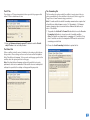
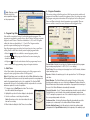
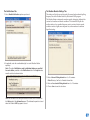
6. To assign this schedule to another program (tab), simply select the number
in the Select Schedule scroll menu during program setup.
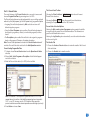
Note: Programs assigned to the same watering
day schedule are easily identified by the
Calendar icon next to the program identifier.
Note: With 16 different watering schedules available, it is possible for each
program to have a unique watering day schedule. However, when
programs share the same schedule, changing the shared schedule on any
program changes it in all programs sharing that schedule.