1
Chapter 11: Custom Views for Devices and Nodes
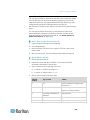
Assign a Default Custom View for Devices
To assign a default custom view for devices:
1. Click the Devices tab.
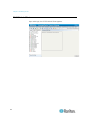
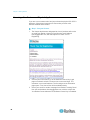
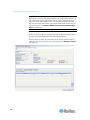
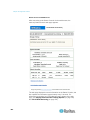
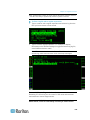
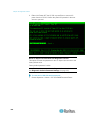
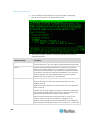
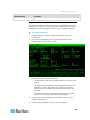
2. Choose Devices > Change View > Create Custom View. The
Custom View screen appears.
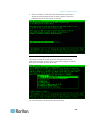
3. Click the Name drop-down arrow, and select a custom view from the
list.
4. In the Custom View panel, click Set as Default. The next time you
login the selected custom view will be used by default.
Assign a Default Custom View of Devices for All Users
If you have the Device, Port, and Node Management privilege, you can
assign a default custom view for all users.
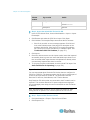
To assign a default custom view of devices for all users:
1. Click the Devices tab.
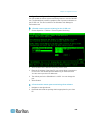
2. Choose Devices > Change View > Create Custom View.
3. Click the Name drop-down arrow, and select the custom view you
want assign as a system-wide default view.
4. Select the System Wide checkbox, and then click Save.
All users who log into CC-SG will see the Devices tab sorted according
to the selected custom view. Users can change the custom view.
186