1
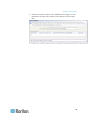
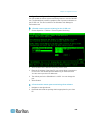
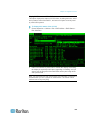
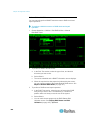
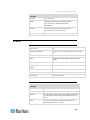
Chapter 13: Reports 3. You can limit the data that the report will contain by entering additional parameters in the Message Type, Message, Username, and User IP address fields. Wildcards are accepted in these fields except for the Message Type field. To limit the report to a type of message, select a type in the Message Type field. To limit the report by the message text associated with an activity, type the text in the Message field. To limit the report to a particular user's activities, type the user's username in the Username field. To limit the report to a particular IP address's activities, type the user's IP address in the User IP address field. 4. In the Entries to Display field, select the number of entries to display in the report screen. 5. Click Apply to generate the report. To purge the records in the report, click Purge. See Purge a report's data from CC-SG (on page 210). Error Log Report CC-SG stores error messages in a series of Error Log files, which can be accessed and used to help troubleshoot problems. The Error Log includes a subset of the Audit Trail entries that are associated with an error condition. To generate the Error Log report: 1. Choose Reports > Error Log. 2. Set the date range for the report in the Start Date and Time and End Date and Time fields. Click each component of the default date (month, day, year, hour, minute) to select it then click the up and down arrows to reach the desired number. 3. You can limit the data that the report will contain by entering additional parameters in the Message, Username, and User IP address fields. Wildcards are accepted in these fields. To limit the report by the message text associated with an activity, type the text in the Message field. To limit the report to a particular user's activities, type the user's username in the Username field. To limit the report to a particular IP address's activities, type the user's IP address in the User IP address field. 4. In the Entries to Display field, select the number of entries to display in the report screen. 5. Click Apply to generate the report. 211