1
DX3000 and DX5000 Quick Start Guide
6 Enter the network configuration information for both
Ethernet ports (if used) and the host and domain
information in the General Section. When finished click
Next to continue.
NOTE: When DHCP is disabled, the default IP
address for port 1 is 10.1.1.1 with a netmask
of 255.255.255.0. The default IP address for
port 2 is 10.0.1.0 with a netmask of
255.255.0.0.
DX5000 users can disable the hot spare option(s) to
maximize storage capacity. This process takes
approximately 4 hours to complete. Click Next to
continue. During this initialization period, the system is
available, but only in a degraded (slower) mode.
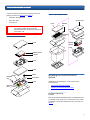
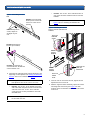
The Media Areas Configuration screen displays (see
figure 19).
Figure 19 Media Areas
Configuration
NOTE: Refer to the Quantum DX3000 and DX5000
User’s Guide (PN 81-81493)for additional
network configuration information.
The RAID Selection screen displays (see figure 18).
Figure 18 RAID Selection
(DX5000 with Twelve Drives)
The Media Areas Configuration screen allows you to
specify how much storage space is dedicated to either
virtual tape cartridges or virtual disks.
8 If you would like tape cartridges to be available on one
or more volumes, change the number in the Tape
Cartridge Area (GB) from a minimum of 5 GB to the
total capacity of the volume. 5 GB is the smallest size
available to tape cartridges.
7 The DX3000/DX5000 systems ship from Quantum in the
following default RAID5 configurations:
•
DX3000 - One logical drive with either four or
eight hard drives.
•
DX5000 (twelve hard drives) - Two logical drives:
The first logical drive contains six hard drives. The
second logical drive contains five hard drives. The
last hard drive is reserved as a hot spare.
•
DX5000 (twenty-four drives) - Four logical drives:
First the third logical drives contain six hard drives.
Second and fourth logical drives contain 5 hard
drives. Two hard drives are reserved as hot spares.
have two hard drives reserved as hot spares.
9 If you would like virtual disks to be available on one or
more volumes, change the number in Virtual Disk Area
(GB) from a minimum of 1 GB to the total capacity of
the volume.
10 Click Next. to continue
The Cartridge Creation screen displays (see figure 20).
10