1
Start Here
1
Important setup information
Wireless or wired network users: you must follow the instructions in this setup guide
to be successful adding the HP All-in-One to your network.
USB cable users: Do not connect the USB cable until step A2.
2
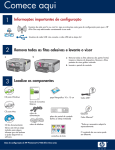
Remove all tape and lift display
a
3
b
a Remove all tape from the front, back,
and both sides of the device. Remove the
protective film from the color graphics
display.
b Lift the control panel.
Locate components
HP Photosmart C7100 All-in-One series
Basics Guide
Windows CD
Basics Guide
Mac CD
Documentation CD
4 x 6 in
(10 x 15 cm) photo paper
USB cable*
control panel faceplate
(may be pre-attached)
Ethernet cable *
power cord
phone cord
This CD may be
included for some
languages where help
is not available through
the software.
HP Photosmart C7100 All-in-One series Setup Guide
*May need to be purchased
separately.
ink cartridges
The contents of your box
may differ.
Attach the control panel faceplate
(if not attached)
4
5
a
b
a Position the control panel faceplate
over the buttons on the device.
b Press down firmly on all edges
of the faceplate until it snaps into
place. Make sure all buttons come
throught the holes in the faceplate.
Load plain paper into the bottom tray
a
b
c
d
Load plain white paper in the bottom paper tray. Plain paper is needed for alignment.
6
Load photo paper
a
b
c
a Lift the output tray.
b Pull out the photo tray.
c Load the 4 x 6 inch (10 x 15 cm)
photo paper from the sample pack
with the glossy side down in the
photo tray.
d
e
d Lower the output tray and
push in the photo tray.
e Pull out the tray extender
and lift up the paper catch.
2 • HP All-in-One
Tip: If the paper is tabbed, make
sure the tab is towards you.
7
Connect the supplied phone cord
Connect one end of the supplied phone
cord to the phone port labelled 1-LINE and
the other to a wall jack.
See the Basics Guide if you want to use
your own phone cord or for help with other
fax setup options.
8
Connect the power cord
USB cable users: Do not connect the USB cable
until instructed later in this guide.
9
Press the On button
After you press the On button, wait for the prompt
on the color graphics display before continuing.
10
Open the access door
a
b
HP All-in-One • 3
11
Lift latches inside of the device
a
a Squeeze the bottom of each latch to release it, and
then lift the latch.
b Lift all six latches.
b
12
Insert all six ink cartridges
a
Match the color and pattern of the ink cartridge to the
color and pattern on the print carriage.
b
a Push the black ink cartridge in to the first slot on the
left. Close the latch.
b Repeat with each of the color ink cartridges.
c Make sure each latch is secure.
Note: Use only the ink cartridges that came with
the printer. The ink in these cartridges is specially
formulated to mix with the ink in the print head
assembly at first-time setup.
c
4 • HP All-in-One
13
a
b
Close the access door and follow the prompts
a After you close the access door, a prompt appears
to load plain white paper. Make sure paper is
loaded, and then press OK to start the process.
The device initializes the ink cartridges and aligns
the printer. This takes approximately 5 minutes.
CAUTION: Do not disconnect or turn off the
HP All-in-One during this time. You may hear the
device making noises.
b After the alignment page is printed, alignment is
complete. Check the display for status, then press
OK. Recycle or discard the alignment page.
14
Connect the HP All-in-One
Continue to the next page for instructions on connecting your HP All-in-One to your computer or to your
network.
HP All-in-One • 5
15
Choose ONE connection type (A, B or C)
A: USB Connection - Do not connect yet
Use this connection type if you want to connect the HP All-in-One
directly to one computer. (Do not connect the USB cable until step
A2).
Equipment needed: USB cable.
For a USB connection, go to Section A (page 7) for instructions.
B: Ethernet (Wired) Network
Use this connection type if you want an Ethernet cable
connection between the HP All-in-One and your network.
Equipment needed: router and Ethernet cable.
For an Ethernet cable connection, go to Section B (page 9) for
instructions.
C: Wireless Network
Use this connection type if you want a wireless
(802.11 b or g) connection between the HP All-in-One and your
network. Equipment needed: wireless router*.
For a wireless connection, go to Section C1 (page 11) for
instructions.
*Note: If you do not have an access point, but want to connect
your wireless computer to the HP All-in-One, see the Wireless Ad
Hoc Network Setup section in the Basics Guide.
6 • HP All-in-One
Section A: USB Connection
A1
Choose the correct CD
Windows Users:
Mac Users:
a Turn on your computer, login if necessary, and
then wait for the desktop to appear
b Insert the HP All-in-One Windows CD..
Note: If the startup
screen does not
appear, doubleclick My Computer,
double-click the CDROM icon with the
HP logo, and then
double-click setup.
exe.
a Turn on your computer, login if necessary, and
then wait for the desktop to appear.
b Locate the HP All-in-One Mac CD.
c Continue to the next page.
c Follow the onscreen instructions to install the
software.
d On the Connection Type screen, make sure to
select directly to this computer. Continue to the
next page.
e Continue to the next page.
HP All-in-One • 7
A2
Connect the USB cable
Windows Users:
Mac Users:
a Follow the onscreen instructions until you see
the prompt to connect the USB cable. (This
may take several minutes.)
Once the prompt appears, connect the
USB cable to the port on the back of the
HP All-in-One, and then to any USB port on
your computer.
a Connect the USB cable from your computer to
the USB port on the back of the device.
b Double-click the HP All-in-One Installer icon.
c Make sure you complete all screens, including
the Setup Assistant.
b Follow the onscreen instructions to complete the
software installation.
A3 Congratulations! Go to Step 18 of this Setup Guide
8 • HP All-in-One
Section B: Ethernet (wired) network
B1
b
c
Connect the Ethernet cable
a Locate the Ethernet cable that you may have purchased
separately.
b Remove the yellow plug from the back of the device.
c Connect one end of the Ethernet cable to the Ethernet port on
the back of the device.
d Connect the other end of the Ethernet cable to the router.
IMPORTANT: Your computer and the HP All-in-One must be on
the same active, working network.
If you are using a DSL or cable modem, make sure you do not
connect the Ethernet cable from the HP All-in-One to the cable
modem. Connect it to the router only.
d
HP All-in-One • 9
B2
Choose the correct CD
Windows Users:
Mac Users:
a Turn on your computer, login if necessary, and
then wait for the desktop to appear.
b Insert the HP All-in-One CD
a Turn on your computer, login if necessary, and
then wait for the desktop to appear.
Note: If the startup screen
does not appear, doubleclick My Computer, doubleclick the CD-ROM icon
with the HP logo, and then
double-click setup.exe.
c Follow the onscreen instructions to install the
software.
d On the Connection Type screen, make sure to
select through the network. Follow the onscreen
instructions.
e Your firewall software may provide prompts on
your computer warning you that HP software is
attempting to access your network. You should
respond to these prompts so that access is
“always” allowed. Then continue with the HP
software installation.
f Continue to the next page.
b Insert the HP All-in-One Mac CD.
c Double-click the HP All-in-One installer icon.
d Make sure you complete all screens, including
the Setup Assistant. To install software on
additional computers, go to step 14.
Questions: Anti-virus and anti-spyware applications
can block software installation and should
be disabled. Remember to turn them back on
following installation.
B3
Congratulations! Go to Step 16 of this Setup Guide
10 • HP All-in-One
Section C: Wireless Network
C1
Choose ONE wireless network option (A or B)
You have two options for connecting the HP All-in-One to your wireless network. You must choose one or the
other:
• If you are certain that your network was originally set up using SecureEasySetup, go to Option A:
SecureEasySetup in Section C2, below.
• If you are not certain, then go to Option B: Typical Wireless Setup (Recommended) in section C2, which is on
the next page.
Tip: If you are unable to establish a wireless network connection to your HP device, you can connect
to your network using an Ethernet cable or connect directly to your computer using a USB cable.
C2
Establish the wireless connection
Option A: SecureEasySetup
Requirements: You must have a wireless router that supports SecureEasySetup.
IMPORTANT: Use this method only if you have previously used SecureEasySetup to setup your network.
Otherwise your network settings may be reset.
a Put the wireless router in SecureEasySetup mode. This often involves pressing a button on the wireless router.
IMPORTANT: You may have limited time to complete the next step after putting the wireless router into
SecureEasySetup mode. See the documentation that came with the wireless router for information about
SecureEasySetup.
b Press the Setup button on the HP All-in-One.
c Press until Network is highlighted, and then press OK. The Network Menu appears.
d Press to highlight Wireless Setup Wizard, and then press OK.
The network should be detected automatically and the wireless network connection will be established.
If the wireless connection is not established or you see the Select Network Name screen, it is likely that
you ran out of time after putting the wireless router in SecureEasySetup mode. Put your wireless router into
SecureEasySetup mode again, and then rerun the Wireless Setup Wizard.
e Follow the prompts on the display to complete the network setup. If the connection is successful,
go to step C3.
If you have problems connecting to the network, see the Basics Guide for additional setup information.
HP All-in-One • 11
Option B: Typical Wireless Setup (Recommended)
a Locate and write down your wireless router settings.
Network Name (also called SSID):______________________________________________________
WEP key/WPA Passphrase (if needed):__________________________________________________
IMPORTANT: If you do not know this information, you cannot continue with your wireless setup. To obtain the
necessary information, you must consult the documentation for your wireless router, the router manufacturer, or
the person who originally set up your wireless network. As much as HP would like to help you, HP is unable to
answer questions about your wireless router or your network such as the Network Name, WEP key, or WPA
passphrase.
b Press the Setup button on the HP All-in-One.
c Press until Network is highlighted, and then press OK. The Network Menu appears.
d Press to highlight Wireless Setup Wizard, and then press OK.
In a few moments, a list of detected networks appears on the display. The network with the strongest signal
appears first.
e Do one of the following:
• Press to highlight the name of the network that you wrote down earlier, and then press OK.
• If the network name that you wrote down does not appear in the list, you can enter it manually. Press
to highlight Enter New Network Name (SSID) and then press OK. See Display keyboard tips to enter
text.
f If your network uses security, a prompt appears for the WEP key or WPA passphrase. Both are case
sensitive. Type the WEP key or WPA passphrase, as requested. See Display keyboard tips to enter text.
If the WEP key or WPA passphrase is not accepted, refer to Network Troubleshooting on page 15.
Note: If your router provides 4 WEP keys, make sure you use the first one.
g Follow the prompts on the display to complete the network setup. If the connection is successful,
go to step C3.
HP Photosmart C7100 All-in-One series
Display keyboard tips:
To Select: use Arrow keys to highlight, and then
press OK.
For mistakes: Select Clear
For lowercase: Select abc
For numbers: Select 123
When you are finished: Highlight Done, and
then press OK.
12 • HP All-in-One
Basics Guide
If you have problems connecting to
the network, see the Basics Guide
for additional setup information.
C3
Insert the correct CD
Windows Users:
Mac Users:
a Turn on your computer, login if necessary, and
then wait for the desktop to appear.
b Insert the HP All-in-One Windows CD
a Turn on your computer, login if necessary, and
then wait for the desktop to appear.
Note: If the startup screen
does not appear, doubleclick My Computer, doubleclick the CD-ROM icon
with the HP logo, and then
double-click setup.exe.
b Insert the HP All-in-One Mac CD.
c Double-click the HP All-in-One installer icon.
c Follow the onscreen instructions to install the
software.
d On the Connection Type screen, make sure to
select through the network. Follow the onscreen
instructions.
d Make sure you complete all screens, including
the Setup Assistant. To install software on
additional computers, go to step 14.
e Your firewall software may provide promts on
your computer warning you that HP software is
attempting to access your network. You should
respond to these prompts so that access is
“always” allowed. Then continue with the HP
software installation.
Questions: Anti-virus and anti-spyware
applications can block software installation and
should be disabled. Remeber to turn them back
on again following installation.
C4
Congratulations! Go to Step 16 of this Setup Guide
HP All-in-One • 13
16
Install software on additional computers
If you have additional computers on your network, install the
HP All-in-One software on each computer. Choose the correct
HP All-in-One CD for each installation.
Follow the onscreen instructions. Make sure that you choose the
connection types between the network and your HP All-in-One (not
between your computer and the network).
17
Congratulations! Go to Step 18 of this Setup Guide
Troubleshooting
Problem: A Paper Jam message appears.
Action: Remove the back access door, and then gently pull out any paper. Turn the
device off, and then on. Load the paper again.
Problem: You did not see the screen prompting you to connect the USB cable.
Action: Remove, and then re-insert the HP All-in-One Windows CD. Refer to
Section A.
Problem: The Microsoft Add Hardware screen appears.
Action: Click Cancel. Unplug the USB cable, and then insert the HP All-in-One
Windows CD. Refer to Section A.
Problem: The Device Setup Has Failed To Complete screen appears.
Action: Verify that the control panel faceplate is firmly attached. Unplug the
HP All-in-One and plug it in again. Check all connections. Make sure the USB
cable is plugged into the computer. Do not plug the USB cable into a keyboard or
non-powered hub. Refer to Section A.
14 • HP All-in-One
Network Troubleshooting
?
Problem: You are not sure if your network is set up properly.
Action: For information on how to set up a network, go to www.hp.com/support.
Enter Photosmart C7100, and then search for Network Setup.
Problem: You are trying to set up a wireless connection through the control panel, and the HP All-in-One
does not connect to the network.
Action:
• On the wireless router, turn on broadcast network name options, and turn off silent broadcast name.
• Move the access point closer to the HP All-in-One and make sure there are no obstructions.
• Turn the wireless router off, wait 30 seconds, and then on again.
• Make sure you entered the correct wireless communication mode and authentication type. See steps C1
through C3.
• See the User Guide for more details and troubleshooting information.
Problem: The Printer Not Found message appears.
Action: First make sure that you have an active connection with the HP All-in-One.
Check your color graphics display for an icon. If you do not see an icon, go back
to your connection type Section (B or C).
If you have an active connection, try the following:
• Turn your HP All-in-One off, wait 30 seconds, and then turn it back on.
• Try temporarily disconnecting your firewall.
Wired (Ethernet) network users:
• Check the cable between the router and the HP All-in-One.
• Check the cable between your computer and the HP All-in-One.
• Make sure your LAN card is set up properly.
Problem: An invalid WEP key or WPA passphrase. This problem could be caused by typing incorrectly, by
changing the case of the key or passphrase or by inserting blank spaces at the beginning or end.
Action: Rerun the Wireless Setup Wizard, and type in the WEP key or WPA passphrase correctly, making sure
there are no blank spaces at beginning or end.
Problem: I have SecureEasySetup, but when I ran the Wireless Setup Wizard, a list of available networks
appeared or the Select Network Name screen appeared.
Action: It is likely that you ran out of time after putting the wireless router in SecureEasySetup mode. Put your
wireless router into SecureEasySetup mode again, and then rerun the Wireless Setup Wizard.
HP Photosmart C7100 All-in-One series
Basics Guide
See the Basics Guide for more troubleshooting and additional set up information.
HP All-in-One • 15
18
Print a 4 x 6 inch photo
a
a Insert the memory card from your camera into the
appropriate memory card slot and press the Photosmart
Express button.
The Photosmart Express menu appears on the color
graphics display.
b Press OK to select View & Print. The most recent photo
on your memory card appears on the display.
c
c Press the arrow buttons to view the desired photo.
d
d Keep pressing OK to print your photo.
If you are looking at a photo on the display, you could
quickly print a 4 x 6 inch photo by pressing the Print
Photos button.
The HP All-in-One makes a print of the photo on your
memory card.
Tip: You could use the Reprint
button to make a copy of an
original photo.
Tip: To learn about printing photos from memory cards,
and other features, see the User Guide and online help.
For additional help, see www.hp.com/support.
© Copyright 2006 Hewlett-Packard Development Company, L.P.
*Q8192-90221*
*Q8192-90221*
Q8192-90221