1
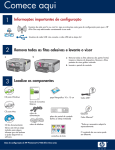
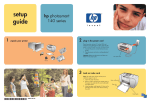
Attach the control panel faceplate
(if not attached)
4
5
a
b
a Position the control panel faceplate
over the buttons on the device.
b Press down firmly on all edges
of the faceplate until it snaps into
place. Make sure all buttons come
throught the holes in the faceplate.
Load plain paper into the bottom tray
a
b
c
d
Load plain white paper in the bottom paper tray. Plain paper is needed for alignment.
6
Load photo paper
a
b
c
a Lift the output tray.
b Pull out the photo tray.
c Load the 4 x 6 inch (10 x 15 cm)
photo paper from the sample pack
with the glossy side down in the
photo tray.
d
e
d Lower the output tray and
push in the photo tray.
e Pull out the tray extender
and lift up the paper catch.
2 • HP All-in-One
Tip: If the paper is tabbed, make
sure the tab is towards you.