1
n
Verify the following:
•
The storage system is functioning properly.
•
All fiber-optic cables are connected and secure.
•
The cluster node can access the shared storage disks.
See "Installing the Host-Based Software Needed for Storage" on page 25
and "Verifying Multi-Path Driver Functionality" on page 26.
o
Repeat step a through step n and reset each Oracle service back to its
original setting.
System Blue Screen
•
PROBLEM: The cluster nodes generate a blue screen.
–
CAUSE: The cluster nodes cannot access the voting disk.
–
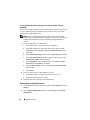
RESOLUTION: Perform the following steps:
a
Ensure that the HBA connection mode firmware settings are configured
properly for your storage configuration.
•
If your cluster nodes and storage system are configured in a directattached configuration, configure Connection mode as: 0 - loop
only.
•
If your cluster nodes and storage system are connected to each other
through a Fibre Channel switch, configure the Connection mode as
2 - loop preferred, otherwise point-to-point.
b
If the problem persists, increase the CSS misscount to a value greater
than 120.
c
Perform the following:
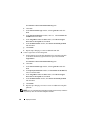
1
Shut down all nodes except node 1.
2
On node 1, open a command prompt.
3
Enter the following:
%ORA_CLUSTERWARE_HOME%\bin
where %ORA_CLUSTERWARE_HOME% is the CRS home directory
that you created in "Installing Oracle Clusterware Version 10.2.0.1" on
page 42.
4
72
At the command prompt, enter the following:
Deployment Guide