1
Chapter 12.
Installing Oracle VM (OVM) for
CloudPlatform
If you want to use the Oracle VM Server (OVM) hypervisor to run guest virtual machines, install OVM
on the host(s) in your cloud.
12.1. System Requirements for OVM Hosts
CloudPlatform works with the following version:
• OVM Server 2.2.1
The OVM hosts must follow these restrictions:
• All hosts must be 64-bit and must support HVM (Intel-VT or AMD-V enabled). All Hosts within a
Cluster must be homogenous. That means the CPUs must be of the same type, count, and feature
flags.
• Within a single cluster, the hosts must be of the same kernel version. For example, if one Host is
OVM 2.2 64 bit, they must all be OVM 2.2 64 bit.
• Be sure all the hotfixes provided by the hypervisor vendor are applied. Track the release of
hypervisor patches through your hypervisor vendor’s support channel, and apply patches as soon
as possible after they are released. CloudPlatform will not track or notify you of required hypervisor
patches. It is essential that your hosts are completely up to date with the provided hypervisor
patches. The hypervisor vendor is likely to refuse to support any system that is not up to date with
patches.
Warning
The lack of up-do-date hotfixes can lead to data corruption and lost VMs.
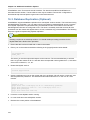
12.2. OVM Installation Overview
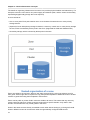
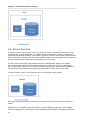
Certain essential CloudPlatform software components can not run on OVM, so your OVM Zone will
need to include at least two clusters: one cluster containing the OVM hosts, and another cluster with a
different hypervisor (KVM, XenServer, or VMWare), where the CloudPlatform system VMs will run.
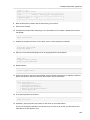
12.3. Installing OVM on the Host(s)
1. Download the OVM template from the Oracle website (http://www.oracle.com/virtualization)
and install it using the OVM Installation Guide. The software download should be a .zip file
that contains two files, an image (.img) file and vm.cfg. You need only the .img file. The default
template password is ovsroot.
2. Unzip the file and copy the .img file to your HTTP server.
3. Follow the instructions in the OVM Installation Guide to install OVM on each host. During
installation, you will be prompted to set an agent password and a root password. You can specify
any desired text or accept the default. Make a note of these passwords – you will need them later.
155