1
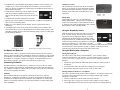
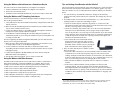
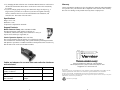
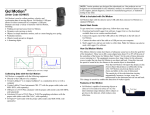
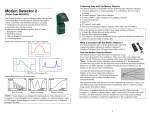
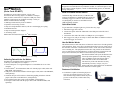
Go! Motion has a pivoting head, which helps you aim the sensor accurately. For example, if you want to measure the motion of a small toy car on an inclined plane, you can lay Go! Motion on its back and pivot Go! Motion head so that it is perpendicular to the plane. Go! Motion has a Sensitivity Switch, which is located under the pivoting Go! Motion head. To access it, simply rotate the detector head away from the detector body. Go! Motion has automatic temperature correction, allowing you to use it indoors at room temperature or outdoors at temperatures above or below room temperature. Rubber feet on Go! Motion provide stability when it is placed on its back or standing up. A standard camera screw mount can be found on the back of Go! Motion. This screw mount allows you to use the Motion Detector Clamp (sold separately, order code MD-CLAMP), which is a universal-mounting clamp, or to use it with typical tripod-mounting hardware. Camera Screw Mount Motion Detector Clamp (sold separately) Calculator I/O Port The calculator I/O port on the left side of Go! Motion allows you to connect any Texas Instruments graphing calculator through the calculator’s link port. You will need the proper cable (order code GM-CALC, sold separately). DIG/SONIC On the right side of the case, you will find a port labeled “DIG/SONIC”. This port allows Go! Motion to connect to Vernier LabPro, Texas Instruments CBL 2, or TI-Inspire Lab Cradle with the proper cable, which is sold separately (order code MDC-BTD). Using the Sensitivity Switch Slide the Sensitivity Switch to the right to set the switch to the “Normal” setting. This setting is best used for experiments such as studying the motion of a person walking back and forth in front of Go! Motion, a ball being tossed in the air, pendulum motion, and any other motion involving relatively large distances or with objects that are poor reflectors, e.g., coffee filters. The other sensitivity setting, which we call “Track”, works well when studying motion of carts on tracks like the Vernier Dynamics System, or motions in which you want to eliminate stray reflections from object near to the sensor beam. Go! Motion and Batteries Using Go! Motion with a Computer Go! Motion has a battery compartment located on the bottom of the case. Four AA batteries can be inserted into the compartment. Please note: batteries are only needed if Go! Motion is used directly with a calculator. If you are connecting Go! Motion to the USB port of a computer, LabQuest 2, LabQuest, or the DIG/SONIC port of a data-collection interface, you do not need to put batteries into the unit. Through the USB port This sensor can be used directly with a Macintosh® or PC computer. Before connecting Go! Motion to your computer, you must install Logger Lite software version 1.3 or newer or Logger Pro 3.4 software or newer. Once the software is installed: 1. Connect the square end of the USB cable into the USB port on the left side of Go! Motion. 2. Connect the other end of the cable into a USB port on your computer. 3. Start the data-collection program. You are ready to collect data. Connecting Go! Motion Go! Motion has three ports that allow it to connect to a variety of devices; a USB port for computers and calculators, a DIG/SONIC port for data-collection interfaces, e.g., LabQuest 2, LabQuest, LabPro, CBL 2, TI-Nspire Lab Cradle, and, a calculator I/O port for TI graphing calculators. USB Port The Go! Motion USB port is used when connecting the sensor to a computer, LabQuest 2, or LabQuest. The USB port can also be used with the TI-84 Plus and TI-84 Plus Silver Edition calculators, which also have USB ports. To connect Go! Motion to a TI-84 Plus calculator, you will need to purchase a separate cable (order code, GM-MINI). 3 Through LabPro, LabQuest 2, or LabQuest This sensor can also be used with the LabPro, LabQuest 2, or LabQuest connected to a computer. Here is the general procedure for using Go! Motion with a LabPro, LabQuest 2, or LabQuest. 1. Connect Go! Motion to the DIG/SONIC port on the interface. 2. Start Logger Lite or Logger Pro software on the computer. You are ready to collect data. Note: You may also open an experiment file for a Motion Detector. 4