1
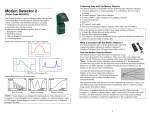
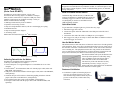
Using Go! Motion with LabQuest as a Standalone Device Tips on Getting Good Results with Go! Motion1 This sensor can also be connected directly to LabQuest 2 or LabQuest. 1. Connect Go! Motion to the USB port on LabQuest 2 or LabQuest. 2. Choose New from the File menu. 3. Go! Motion will be identified automatically. You are now ready to collect data. The most frequently reported problems with a motion detector are (1) that the motion detector does not work beyond a certain distance or (2) that the graph is very noisy. There are a number of ways to troubleshoot these situations, and they are described below. 1. See if the Sensitivity Switch makes a difference. Simply set the Sensitivity Switch to the other position and retry the experiment. This change may solve the problem. 2. If Go! Motion does not work beyond a certain distance, e.g., it does not detect anything beyond 1.2 m, here are some things to check: Check for movable objects (textbooks, ring stands, etc.) in the cone of the ultrasound. If possible, move these objects out of the measurement cone. It may not take a very large object to cause problems. Check for a stationary object (chair, table, etc.) in the cone of the ultrasound. This object may be detected when you are trying to study an object further away. It may not take a very large object to cause problems. If you have trouble with a stationary object causing unwanted echoes, try setting the equipment up so that the objects are not in the cone or placing a cloth over the object. This minimizes the ultrasound reflection. Also note that the cone of ultrasound extends downward from the center line. This can cause problems if you are using Go! Motion on a hard, horizontal surface. In these cases, try pivoting the head of Go! Motion to aim it slightly upward. 3. Noisy or erratic data may have a number of causes. Here are some tips. Sometimes other sound sources can cause problems. If there is another source of ultrasonic waves in the same frequency range, this will cause erroneous readings. Examples include motors and fans, air track blowers, the sound made by the air exiting the holes on an air track, etc. Try to eliminate these sources of noise. If you are using an air track, try changing the air flow volume. Make sure that Go! Motion is not placed close to a computer or computer monitor. If the room in which Go! Motion is being used has a lot of hard, soundreflecting surfaces, you can get strange effects caused by the ultrasound bouncing around the room. Standing waves can be set up between Go! Motion and a sound reflector. Try placing a cloth horizontally just in front of and below Go! Motion. This sometimes helps eliminate ultrasound that is “skipping” into Go! Motion. Using Go! Motion with TI Graphing Calculators For the TI-84 Plus family of calculators through calculator’s USB port or I/O port, here are the general procedures: 1. Verify that batteries have been installed in the battery compartment located on the bottom of the case. 2. Make sure that the EasyData application is installed on your calculator and that you are on the calculator’s home screen. 3. Connect Go! Motion directly to TI graphing calculator through the calculator’s USB port or I/O port (separate cables are required). 4. If Go! Motion is connected through the calculator USB port, EasyData will automatically launch. If you are using the calculator I/O port, start EasyData. You are ready to collect data. For all a TI graphing calculators through the DIG/SONIC port of a data-collection interface, here is the general procedure: 1. Make sure that a data-collection program is installed on your calculator. If you are using LabPro or CBL 2, use the EasyData application. 2. Use the calculator-to-calculator link cable to connect the interface to the TI graphing calculator using the I/O ports located on each unit. Be sure to push both plugs in firmly. 3. Connect the Go! Motion to the DIG/SONIC port on the interface using the MDC-BTD cable (sold separately). 4. Start the data-collection program. You are ready to collect data. Using Go! Motion with Other Sensors Go! Motion can be used with one or more other sensors when it is connected to a data-collection interface or through a USB hub on a computer. Here are some examples of how Go! Motion can be used for experiments with another sensor: With a Force Sensor to study the relationship between force and motion With a Force Sensor to study collisions and impulse With a Force Sensor to study simple harmonic motion With a Light Sensor to study the inverse square law With a Magnetic Field Sensor to study how magnetic field varies with position With a second Motion Detector (LabPro or LabQuest only) 1 5 An excellent discussion of motion detector theory and operation can be found in “Physics and Technical Characteristics of Ultrasonic Sonar Systems”, Dan MacIsaac and Ari Hamalainen, The Physics Teacher 40, 39–46 (January 2002). 6