1
System Setup
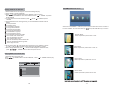
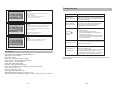
Video Setup Page
Video Setup
Setup Menu
--
Main Page
General Setup
Video Setup
Preference Setup
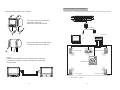
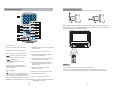
Press”Setup”button,the main menu will be displayed on the
screen
In the General Setup Page, Press
button to highlight this
item.
Press ENTER button to access.
Press
button to select the setting.
Press ENTER button to confirm your selection.
Press
button to exit.
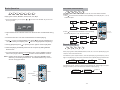
TV Type
Quality
Panel Quality
:Move
NTSC
TV Type:
PAL TV
NTSC TV
Enter this option to select TV type(PAL,NTSC)
The default is NTSC.
:Return
:Entry
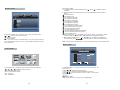
Video Setup
General Setup Page
TV Type
Quality
Panel Quality
Set the Video Quality of AV OUT
NTSC
TV display:
General Setup
TV Display
Angle Mark
OSD Lang
Screen Saver
Wide
ON
ENG
ON
Enter this option,user can set screen display format
Normal/PS
Normal/LB
Wide
:Return
:Entry
:Entry
:Return
The default is "Wide"
Video Setup
Note
The function depends on the display ratio with which the
:Move
:Move
(Nomal/PS,Nomal/LB,Wide)
DVD disc is recorded.
Please choose “Wide(16:9)"when using a16:9 wide screen
Set the Video Quality of PANEL
TV Type
Quality
Panel Quality
NTSC
TV set
:Move
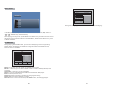
Enter this option to set the angle during playback.
Wide
ON
ENG
ON
:Entry
Angle Mark:
General Setup
TV Display
Angle Mark
OSD Lang
Screen Saver
:Return
Optional setting: ON, OFF
On
Off
Preference Page
The default is: ON
Preference Setup
:Move
:Return
:Entry
General Setup
TV Display
Angle Mark
OSD Lang
Screen Saver
:Move
Wide
ON
ENG
ON
English
:Move
:Return
:Move
English
French
German
Italian
:Return
:Entry
Preference Setup
:Entry
Screen Saver
Enter this option to set whether to activate the screen saver
function.
General Setup
Wide
ON
ENG
ON
ENG
Off
ENG
French
German
Italian
:Return
TV Display
Angle Mark
OSD Lang
Screen Saver
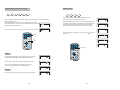
OSD Language:
In the option user can set OSD menu language(English,
French,German,Italian).
The default:English
Audio
Subtitle
Disc Menu
Parental
Default
The default is ON.
Audio
Subtitle
Disc Menu
Parental
Default
:Move
ENG
Off
ENG
English
French
German
Italian
Off
:Return
:Entry
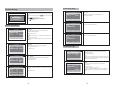
Audio:
Enter this option, user can select your preferred audio
language for DVDs.
The default is English
Note
The audio language depend on the material on each disc.
User can also change the audio language during playback
by pressing the Audio button.
Subtitle
Select your preferred language to show the subtitles
on the screen.
The default is OFF
The subtitle languages depend on the
information available on each disc,You can also change the
subtitle language during playback by press the SUBTITLE
button.
On
Off
:Entry
22
23