1
Chapter 4: Management with WebPAM PROe
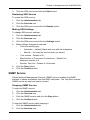
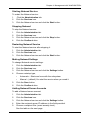
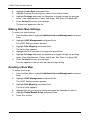
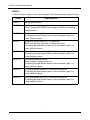
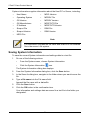
Starting Netsend Service
To restart the Netsend service:
1.
Click the Administration tab.
2.
Click the Services icon.
3.
Click the Netsend service and click the Start button.
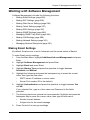
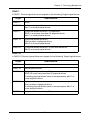
Stopping Netsend
To stop the Netsend service:
1.
Click the Administration tab.
2.
Click the Services icon.
3.
Click the Netsend service and click the Stop button.
4.
Click the Confirm button.
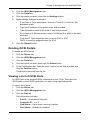
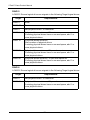
Restarting Netsend Service
To start the Netsend service after stopping it:
1.
Click the Administration tab.
2.
Click the Services icon.
3.
Click the Netsend service and click the Start button.
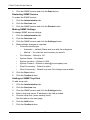
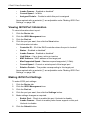
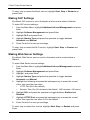
Making Netsend Settings
To change Netsend service settings:
1.
Click the Administration tab.
2.
Click the Services icon.
3.
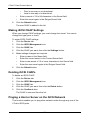
Click the Netsend service and click the Settings button.
4.
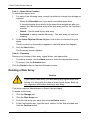
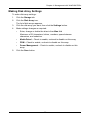
Choose a startup type,
•
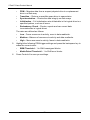
Automatic – Starts and runs with the subsystem.
•
Manual – (default) You start the service when you need it.
5.
Click the Save button.
6.
Click the Confirm button.
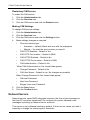
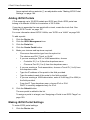
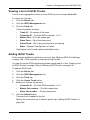
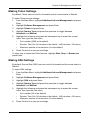
Adding Netsend Server Accounts
To add a Netsend server account:
1.
Click the Administration tab.
2.
Click the Services icon.
3.
Click the Netsend service and click the Settings button.
4.
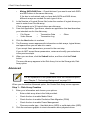
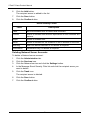
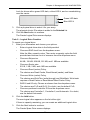
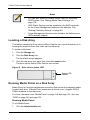
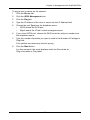
Enter the recipient server IP address in the field provided.
5.
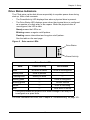
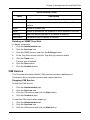
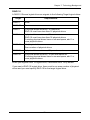
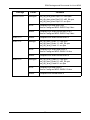
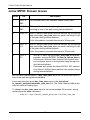
Choose a recipient filter (event severity level).
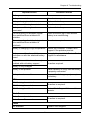
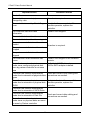
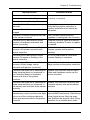
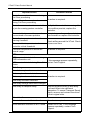
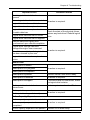
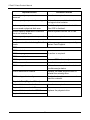
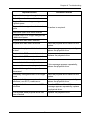
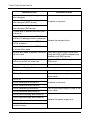
See the table on the next page.
133