1
USER’S GUIDE
MT7570 Vehicle Mount Terminal
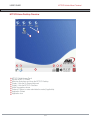
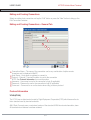
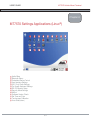
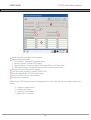
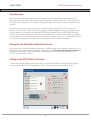
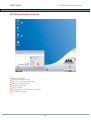
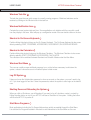
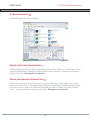
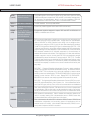
Windows Task Bar
The task bar gives the user quick access to currently running programs. Minimized windows can be
restores by clicking on the Window's title in the task bar.
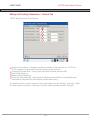
Windows Notification Area
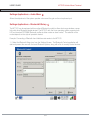
Contains the current system date and time. Some applications only interface with the user with a small
icon they display in this area. Most will pop up a configuration screen if the user double clicks on the icon.
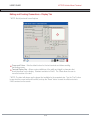
Shortcut to On-Screen Keyboard
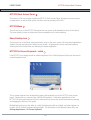
Double-clicking this shortcut brings up the On-Screen Keyboard. The On-Screen Keyboard is also accessible by selecting START, PROGRAMS, ACCESSORIES, ACCESSIBILITY,ON-SCREEN KEYBOARD
Shortcut to the Calculator
Double-clicking this shortcut brings up the Windows Calculator. The Windows Calculator is also accessible by selecting START, PROGRAMS, ACCESSORIES, CALCULATOR.
The calculator can be switched between Standard and Scientific Modes under the View Menu.
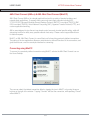
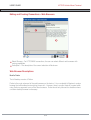
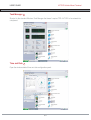
Windows Start Menu
The user can quickly access additional programs to run or the buttons necessary to shutdown the
system, unless of course the user is in Internet Explorer's kiosk mode.
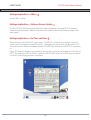
Log Off System
Unless you know the Administrator password or have an account on the system, you won't need to log
off. If you have logged off and don't have the passwords, reboot the system to auto-login as the default
user.
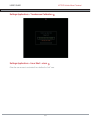
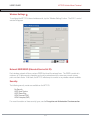
Shutting Down and Rebooting the System
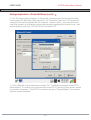
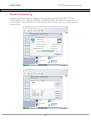
When you click on Shutdown, you will be asked if you want to log off, shutdown, restart, or stand by.
Hitting the silver button on top of your MT7570 will start a Shutdown of the system. Holding the button
will force the MT7570 to power off.
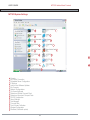
Start Menu Programs
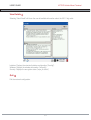
Most applications including the On-Screen Keyboard are quickly accessible through the Start Menu.
It is standard for Programs installed in Windows to add themselves to the Start Menu so the user
8-3