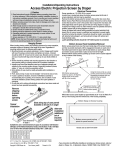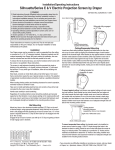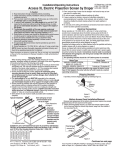
1
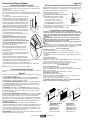
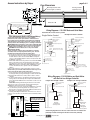
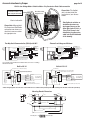
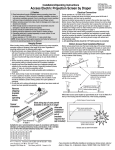
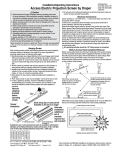
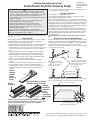
Access Instructions by Draper page 2 of 4 Motorized Roller/Fabric Installation Please note: When ordering a motor with built-in Low Voltage Controller, if the case ships separate from the "guts," the case includes the 25' cable and special low voltage switch. The bottom access panel must be removed first. The motor end mounting bracket has a metal bracket with snap ring for accepting motor head. Back out the four set screws in bracket until they are flush with top side of bracket. To engage the motor end bracket flange above the two channels in the top of the screen housing, rotate the bracket approximately 45° counterclockwise to allow the top surface of the motor bracket to rest flat against the top inside of the housing. Rotating the bracket clockwise until it is engaged with the channels, slide it along the length of the housing against the electrical junction box. Engage idler end bracket (rectangular mounting pad) Retaining clip in the same manner as motor end bracket and slide it Washer toward the opposite end of the screen housing. Do not Motor roller assembly tighten set screws on this bracket until the roller/fabric Idler end roller assembly is installed, and centered in case. mounting bracket Locate the black washer and retaining clip attached to the instruction sheet. Note: This step requires two people to perform safely. Raise the roller/fabric assembly up into the screen housing and engage the head of the motor completely into the motor mounting bracket, making sure the snap ring engages with the motor and that the limit switch adjusting knobs are visible from the bottom of the screen housing. While supporting the idler end of the roller, slide the idler end mounting bracket toward the roller. Insert the roller pin into the nylon bushing on the idler end mounting bracket. The roller idler pin needs to go through the idler bracket far enough to allow the washer and retaining clip to be reinstalled on the pin. Failure to replace the washer and retaining clip could result in the separation of the roller from the brackets. The roller/fabric assembly and roller brackets may need to be slid left or right in the mounting channel of case to center fabric within screen case. Securely tighten the set screws on roller mounting brackets. Connect the electrical plug from the motor to the mating socket on the junction box. Reinstall the bottom access panel as previously described. Motorized Roller/Fabric Removal Reverse the instructions above “Motorized Roller/Fabric Installation” for removal of the unit. Operation When screen is first operated, be cautious! Cycle unit down and up several times to confirm satisfactory operation. 110-120V SINGLE STATION CONTROL—3-position UP-OFF-DOWN switch permits operation to be stopped at any point. Factory adjusted limit switches automatically stop screen when fully down or fully up. 110-120V MULTIPLE STATION CONTROL—Switches are similar in appearance to 110-120V Single Station Control. Screen stops when switch is released and may be restarted in either direction. Factory adjusted limit switches stop screen automatically when fully up or fully down. 24V CONTROL—Three-button UP-STOP-DOWN switches stop at any point desired, operate in any sequence. Factory adjusted limit switches automatically stop screen when fully up or fully down. Installer should incorporate an all-pole disconnect in the fixed wiring. 110-120V & 12V VIDEO INTERFACE CONTROL—Allows screen to be controlled by trigger signal—when the signal comes on, the screen descends automatically. Two versions: Model VIC115 integrates screen operation with a Draper video projector lift or a video projector or tuner with a 110-120V switched outlet. Model VIC12 interfaces with a 12V switched outlet. Both available with an override switch (VIC–OS), permitting independent operation. VIC–OS not available with factory installed VIC115 & VIC12. KEY OPERATED SWITCHING—Two kinds of key-operated switches are optionally available with this unit. The key-operated power supply switch controls power to the screen and switches. When it is “off”, the switches will not operate screen. Key may be removed from the switch in either “on” or “off” position. A three-position key switch permits the screen to be operated directly by key. In this case, the screen’s operator must always have a key. RS232/ETHERNET—Serial communication and network communication optionally available with wall switches, RF or IR remote. www.draperinc.com Tab-Tension Adjustment Procedure for Access/Series V Draper’s Tab-Tensioning System is factory-set; under normal circumstances field adjustment is not required. If you notice wrinkles, waves or other indications that tensioning cables need adjusting, follow these steps: 1 Determine which side requires adjustment. Tensioning 2 Secure dowel with one hand. Cable Caution: Don't touch or bend viewing surface. 3 Use Phillips-head screwdriver to depress spring-loaded adjustment screw. Slowly Dowel Adjustment Screw turn clockwise to tighten tension or counterclockwise to loosen tension. The screw adjusts in ¼ turn increments. Adjust only one increment (¼ turn) at a time. 4 If problem is not corrected, leave screen in position for 24 hours to allow surface material to stretch into position. 5 If problem still is not corrected, repeat steps 2 and 3. Limit Adjustments (Standard/Quiet Motors) Please Note: Screen limits are factory set for optimum performance of the screen. A procedure is outlined below for minor tweaks, but any adjustment of these limits may negatively affect the flatness of the screen surface and could also void the warranty. Please check with Draper prior to resetting screen limits. CAUTION: Always be prepared to shut screen off manually when new adjustment is being tested. Screen may be severely damaged if viewing surface is allowed to run too far up or too far down. CAUTION: Be sure all switches are in “off” position before adjusting limit switches. The motor limit screws are normally located on the audience left of screen roller. **Please Note: If the Access E/V is “Right Hand Motor” or “Waterfall”, the WHITE/ DOWN and YELLOW/UP limit screws are reversed. See graphic below. "Down" Limit Adjustment To Reduce Screen Drop 1 Raise screen surface about 1' above desired setting and turn off. 2 Turn the WHITE/DOWN limit screw clockwise (three screw turns = ½ roller revolution). 3 Test by running screen down and repeat steps 1 and 2 until desired position is reached. To Increase Screen Drop 1 Run screen to the down limit. 2 With the down switch on, turn the WHITE/DOWN limit screw counterclockwise (3 turns of screw equals ½ roller revolution) to increase drop. 3 Test by running screen up about 1' and back down to new down limit. 4 Repeat steps 2 and 3 until desired position is reached. "Up" Limit Adjustment Screen is Running Too Far Up 1 Lower screen surface about 1' below desired setting and turn off. 2 Turn the YELLOW/UP limit screw clockwise (3 screw turns = ½ roller revolution). 3 Test by running screen up. 4 Repeat steps 1 through 3 until desired position is reached. Screen Needs to Run Up More 1 Run screen down about 1' and turn off. 2 With the up switch on, turn the YELLOW/UP limit screw counterclockwise (3 turns of screw equals ½ roller revolution). 3 Repeat steps 1 and 2 until desired position is reached. CAUTION: Do NOT allow the dowel to wrap up over the roller when the screen is running up! This could damage the screen. Audience Side Motor End Audience Side Standard Roll Motor End Reverse Roll Standard/Reverse Roll Left hand motor White Socket—Down Yellow Socket—Up Right hand motor White Socket—Up Yellow Socket—Down (765) 987-7999 Audience Side Motor End Waterfall Roll Waterfall Roll Left hand motor White Socket—Up Yellow Socket—Down Right hand motor White Socket—Down Yellow Socket—Up