1
Wasp Labeler User Manual
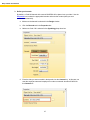
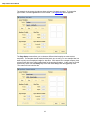
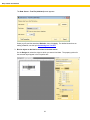
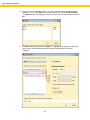
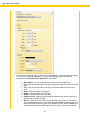
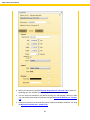
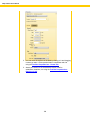
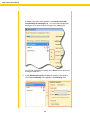
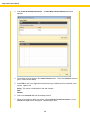
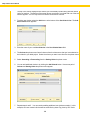
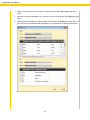
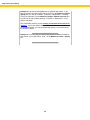
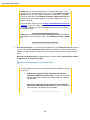
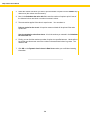
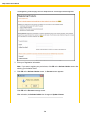
b. Enter the beginning and ending delimiter in the Begin and End fields. For instance, if
the data in the ODBC data source is divided by commas, enter commas here.
Brackets appear by default. Some ODBC drivers have difficulty handling square
brackets [ ] in the query string.
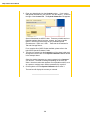
c.
Select the Use only when table or column contains: checkbox and accept the
default entry or enter a new parameter in the text field.
d. Click Reset to return the options to the default values.
e. Click OK to save your changes and return to the Data Source - ODBC screen.
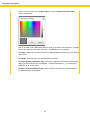
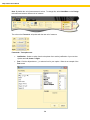
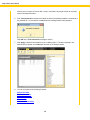
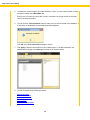
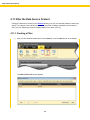
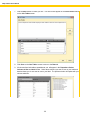
6. Click Apply to add the database to your label project. The Data tab will display the selected
data.
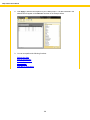
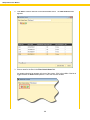
7. You can now perform the following functions:
Refresh the Data
Edit the Connection
Remove Connection
Sort the Data
Filter the Data
Join two or more tables
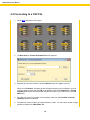
4.7 Connecting to QuickBooks®
Note: Make sure you have QuickBooks® running before connecting.
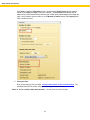
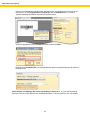
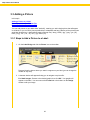
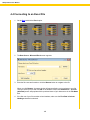
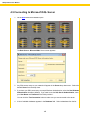
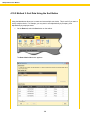
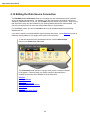
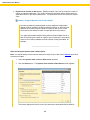
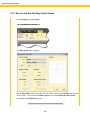
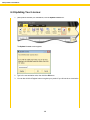
1. On the Data tab, click the QuickBooks® icon:
148