1
Custom quick fire mode
The quick fire controller also includes a custom mode to ensure future compatibility with new games and so you can experiment with
different firing rates. The rates can range for 6 shots to 60 shots per second.
To set the custom firing rates follow these steps:
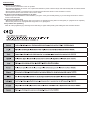
1. Press start and select simultaneously to enter the programming mode.
2. Press up or down on the D-pad to cycle through the different modes and choose M6.
3. Then press the select button to enter the shots mode.
4. Press up or down on the D-pad to choose the shots per second you want.
5. Press start and select again to confirm your selection.
6. The controller will now fire at your chosen rate when you are in M6 mode.
L
L
R
PRG
SELECT
SELECT
START
L
R
M6 06 SP S
PRG
START
SELECT
START
PS
PS
ON
R
M5
M6
M1 06 SPS
M1
PRG
M2
M3
M1 08 SPS
ON
OFF
L
OFF
ON
R
12
M6 14
10 SPS
R1
PRG 16
-60
SELECT
PS
L
R
M6 14 SP S
PRG
START
SELECT
START
PS
ON
OFF
PS
OFF
ON
OFF
Programming other buttons for rapid fire
By default, only the R1 button is used for quick fire, but if you are playing games that use another button for firing, you can also program
them.
To set other buttons for quick fire, follow these steps:
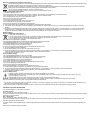
1. Press the select and PS Home button on the controller simultaneously to enter the button programming mode. The LCD screen will
then display PRG.
2. Press the button you wish to program as quick fire (i.e. the triangle button) A triangle symbol will then appear on the LCD screen to
indicate it has been pressed.
3. Press select and PS Home again to confirm your selection. The triangle button will now act in quick fire mode. The button will remain
as a quick fire button even when you switch off your controller
L
R
L
R
PRG
L
R
PRG
SELECT
START
PRG
SELECT
START
PS
ON
SELECT
START
PS
OFF
ON
PS
OFF
ON
OFF
To set the button back to normal, follow these steps.
1. Press the select and PS Home button on the controller simultaneously to enter the button programming mode. The LCD screen will
then display PRG.
2. Press the button you wish to clear as quick fire (i.e. the triangle button) The triangle symbol will then disappear from the LCD screen
to indicate it has been pressed.
3. Press select and PS Home again to confirm your selection. The triangle button will set back to normal.
L
R
L
R
PRG
L
R
PRG
SELECT
START
PRG
SELECT
START
PS
ON
SELECT
START
PS
OFF
ON
PS
OFF
ON
OFF
Disable Quick fire on R1 button
If you do not want rapid fire on the R1 button you can disable it in the same way as mentioned above
1. Press the select and PS Home button on the controller simultaneously to enter the button programming mode. The LCD screen will
then display PRG.
2. Press the R1 The R1 symbol will then disappear from the LCD screen to indicate it has been pressed.
3. Press select and PS Home again to confirm your selection. The R1 button will set back to normal and will no longer have quick fire.
L
R
PRG
L
L
R1
R
M1 08 SP S
R
PRG
SELECT
START
SELECT
PS
ON
SELECTS
PS
OFF
START
PS
TART
ON
OFF
Clearing all programming
If you wish to set your controller back to default, simply switch it off and switch it back on again, whilst holding the start and select buttons
simultaneously. All controls will then be set to standard factory settings.
L
R
L
R
M1
08 SP S
R1
PRG
SELECT
START
SELECT
START
PS
ON
OFF
PS
ON
OFF