Download Sharp BD-HP80U

Transcript
SETTINGS
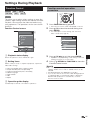
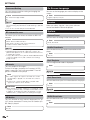
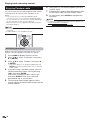
Communication Setup
5
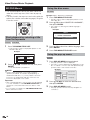
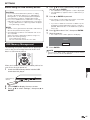
This allows you to perform and/or change the
communication settings and select the type of Internet
connection from Cable or Wireless (built-in). This
setting is required to use BD-LIVE functions, video
streaming services and software updates that connect
to the Internet.
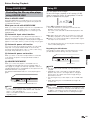
Press a/b to select “Change”, then press
ENTER.
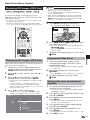
Current Ethernet setup info.
IP Address
Netmask
Gateway
DNS
NOTE
• Make sure that the LAN cable is connected to this player
if a wired Internet connection is made. Make sure that the
wireless router/access point is connected to the Internet if
a wireless Internet connection is made. (See pages 20–21.)
• For manually performing the setting, the following
information of the connected router or modem is required.
Confirm the information prior to the setting.
− IP address, netmask, gateway, DNS address
: Auto Setup
: Auto Setup
: Auto Setup
: Auto Setup
Change
Initialize
• For initializing the current setting, select “Initialize”,
then press ENTER.
6
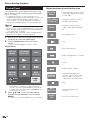
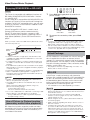
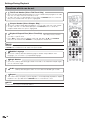
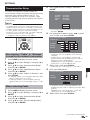
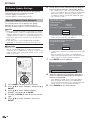
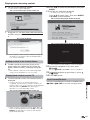
For setting the IP address, press c/d to select
“Yes” or “No”, then press ENTER.
Do you obtain the IP address
automatically?
Yes
No
IP Address
Netmask
Gateway
Next
Sets whether “Cable” or “Wireless”
is used for the network connection
1
2
3
4
7
• If selecting “Yes” in the step 5, go to the step 9.
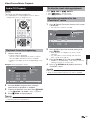
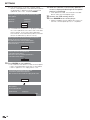
8
Primary
Secondary
Next
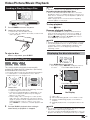
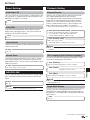
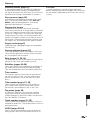
• The primary and secondary DNS addresses are
entered using the screen for inputting characters. (See
page 46.)
Regarding each of the setup values, confirm the
specifications of your broadband router.
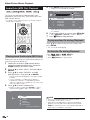
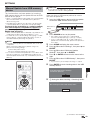
When selecting Cable
3
4
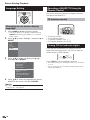
Press HOME to display the menu screen.
Press a/b to select “Settings”, then press d or
ENTER.
Press a/b to select “Communication Setup”,
then press d or ENTER.
Press a/b to select “Ethernet Setup (Cable)”,
then press d or ENTER.
Enter your DNS address.
• If selecting “Cable”, follow the [When selecting Cable]
directions below, then go to step 4.
• If selecting “Wireless”, follow the [When selecting
Wireless] directions on the next page, then go to step
4.
1
2
Select “Next”, then press ENTER.
Settings
5
Press HOME to display the menu screen.
Press a/b to select “Settings”, then press d or
ENTER.
Press a/b to select “Communication Setup”,
then press d or ENTER.
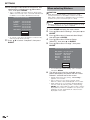
Press a/b to select “Cable/Wireless Select”,
then press d or ENTER.
Press a/b to select “Cable” or “Wireless”, then
press ENTER.
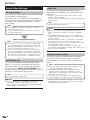
• If selecting “Yes”: The IP address is automatically
obtained.
• If selecting “No”: The IP address, netmask and
gateway are manually entered using the screen for
inputting characters. (See page 46.)
Regarding each of the setup values, confirm the
specifications of your broadband router.
9
Select “Next”, then press ENTER.
(Continued on the next page)
43